
You can use UpBup to communicate with your staff about different updates. You can send emails, or add on our SMS communication tool to send messages directly to your staff's mobile device.
To learn more about SMS communication please contact us here
1. Log in as admin, and head to your Admin/Staff view. Select the dashboard of the type if users you want to send the message to. If you want to send 1 message to all teachers, admins, and staff members, you will send 1 message to each group from each dashboard.
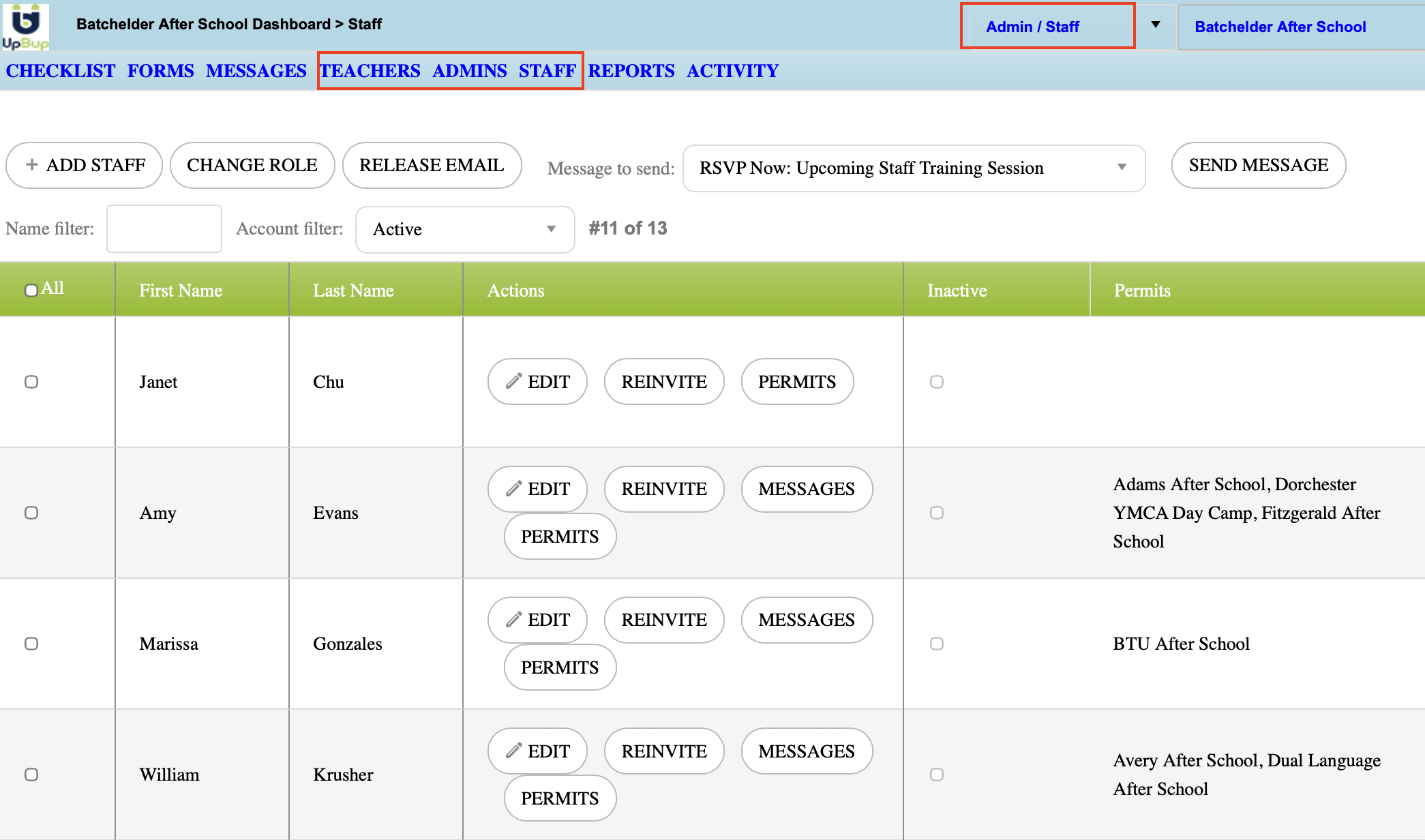
2. From the dashboard you selected, please select the message you'd like to send from the dropdown:
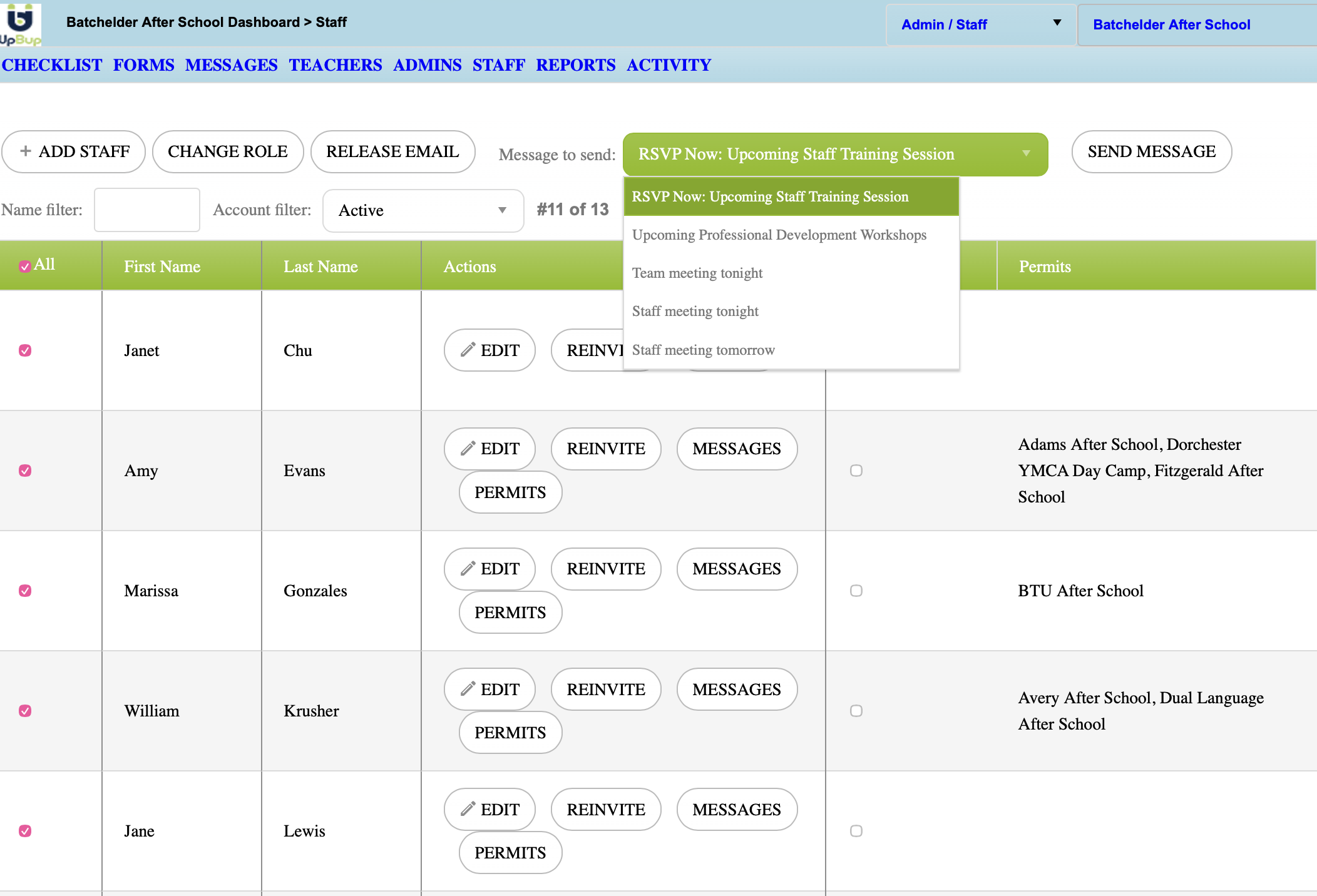
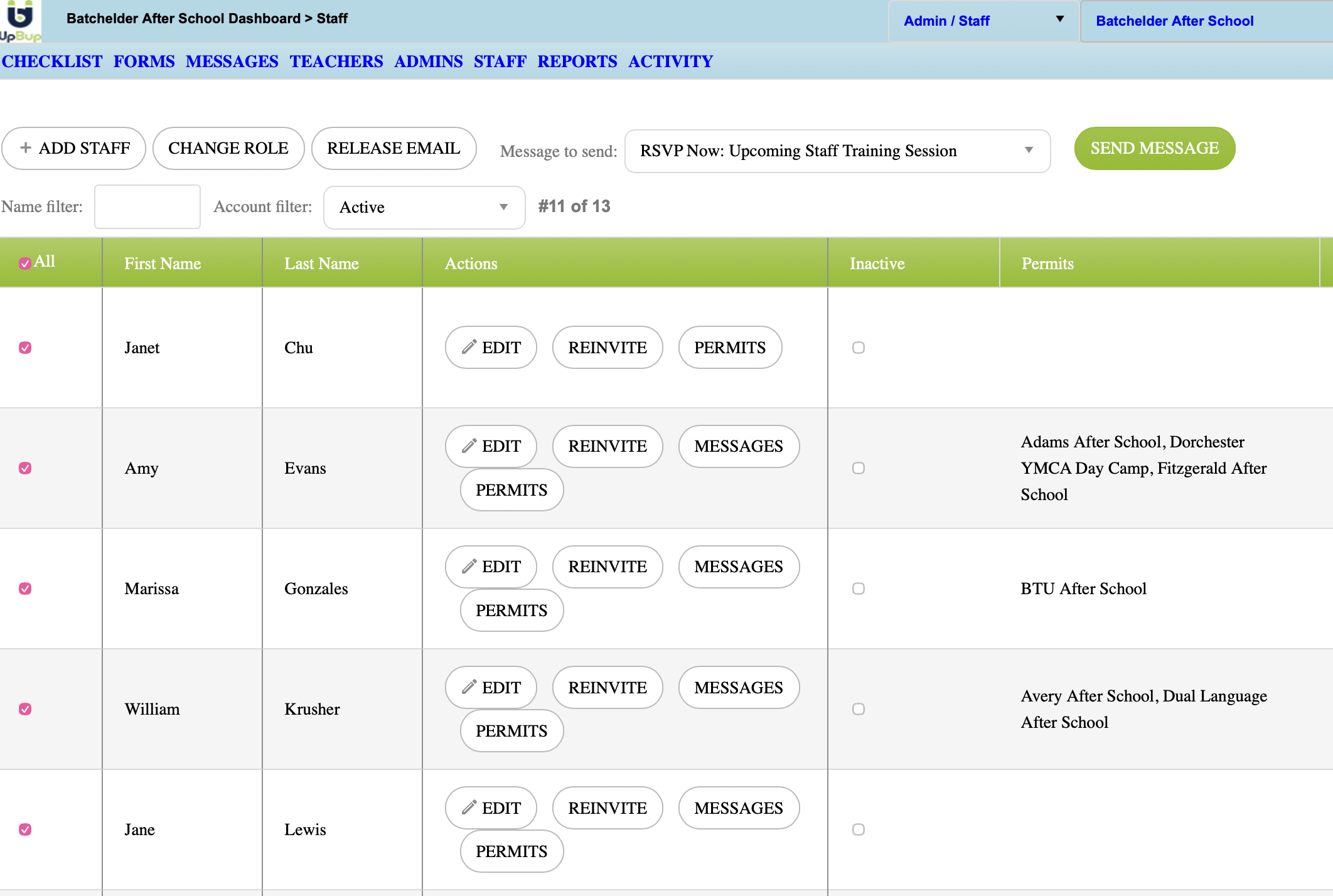
3. Select the people you want to send this message to using the checkboxes to the left of the dashboard. Click Send Message.
4. Review the message to send and confirm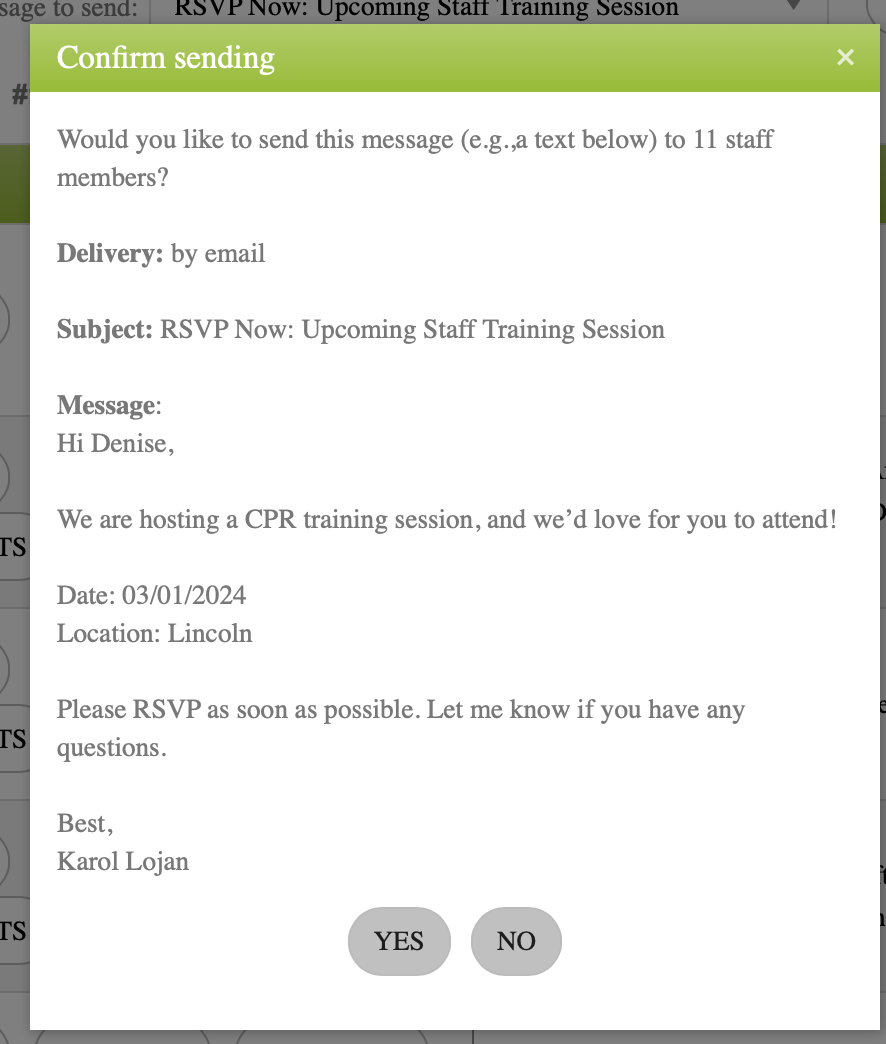
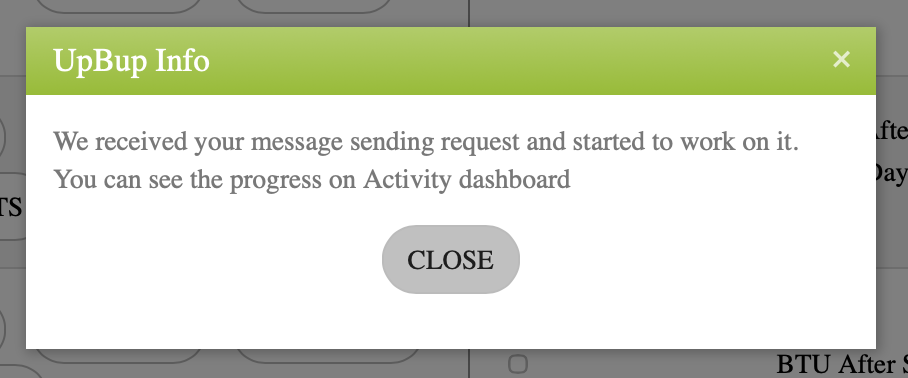
5. The request is being processed.
6. You can always see the history of messages sent to each user from the MESSAGES button next to their names

RELATED ARTICLES:
Differences between Admin, Teacher and Staff
Overview: Info and Emergency Messages, Form Requests and Reminders