
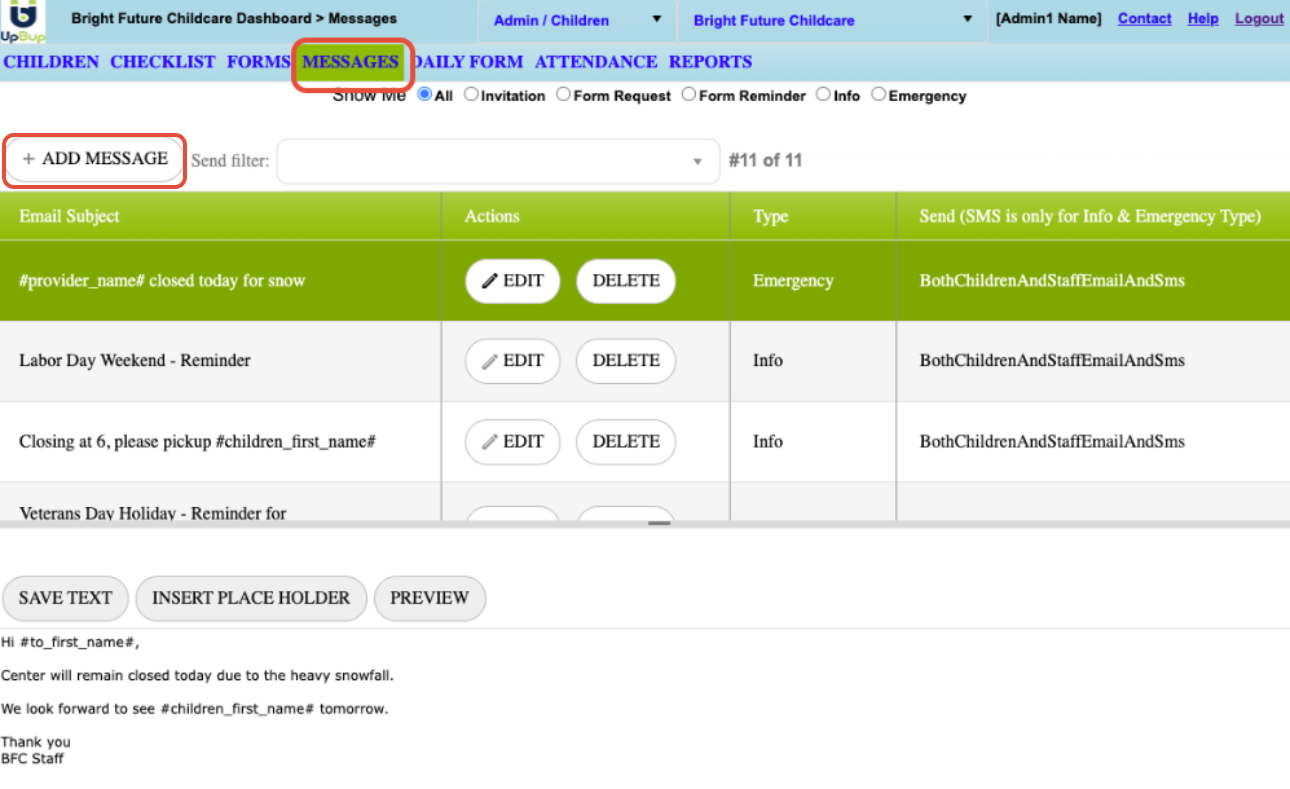
1. Go to the MESSAGES Dashboard tab.
Jump to:
CREATING NEW MESSAGE TEMPLATE:
2. Select + ADD MESSAGE
3. Enter the following information:
- Subject = Enter appropriate Email Subject that staff members will see in their inbox. (You can insert "Place Holders" to personalize your subject line. Learn more about how to use "Place Holders" in this article)
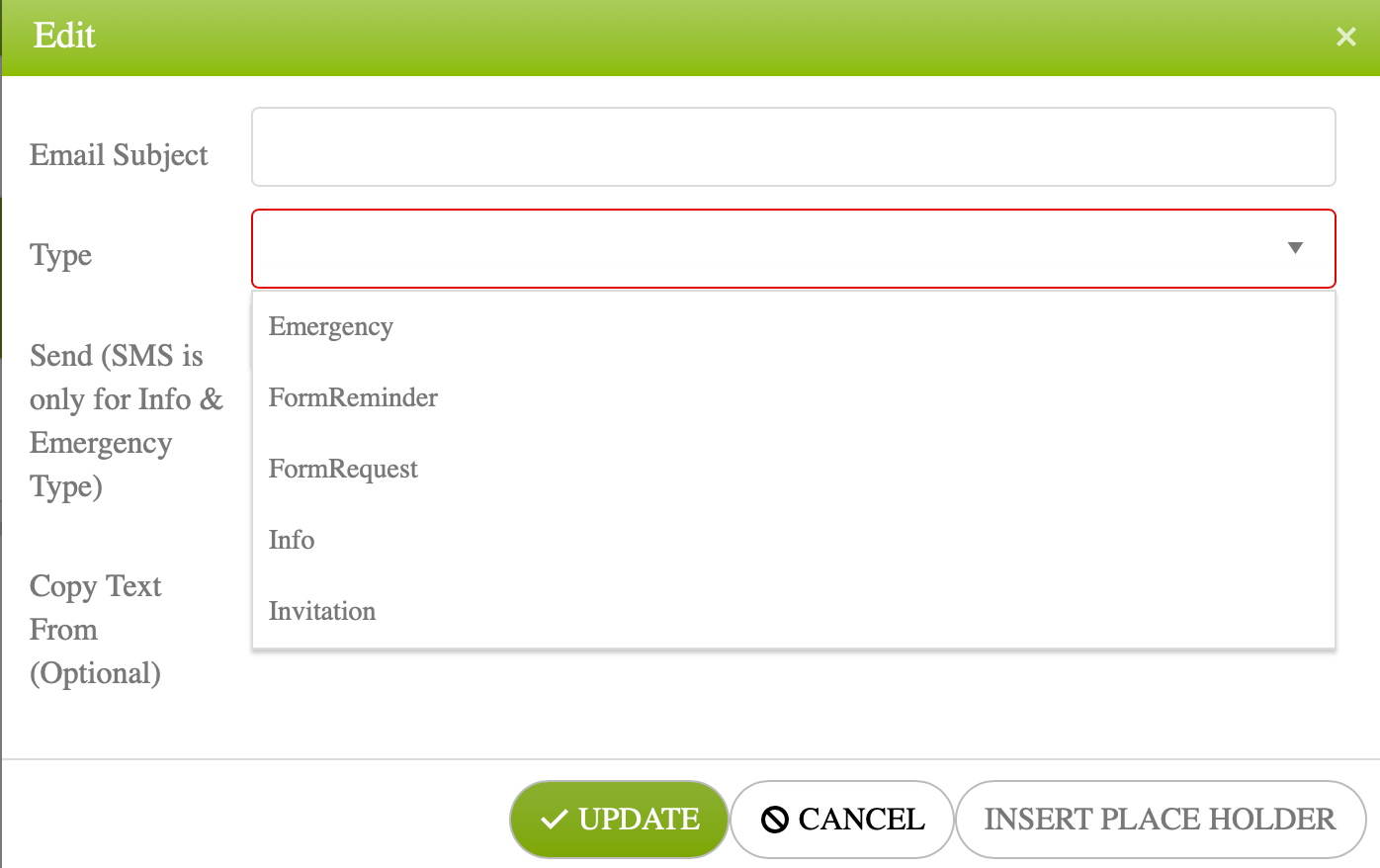
- Type = Select type from Info, Invitation, FormReminder, FormRequest, Emergency (To learn more about the different types of messages, check out this article).
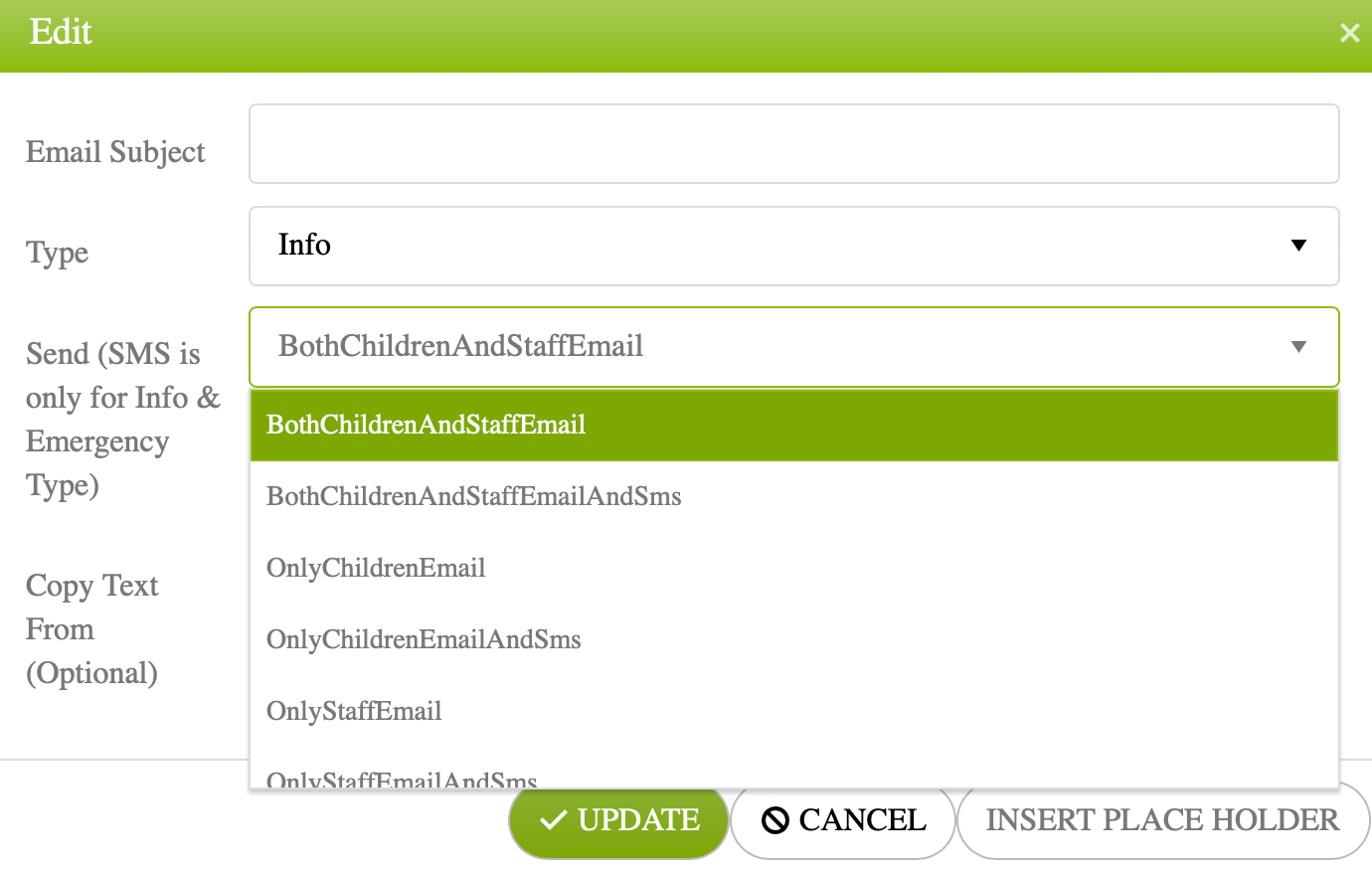
- Send = Select intended recipients (In this case, only Staff) and method (Providers have have SMS messaging enabled will see this as an option for INFO and EMERGENCY Messages. To learn more about SMS messaging with UpBup check out this article)
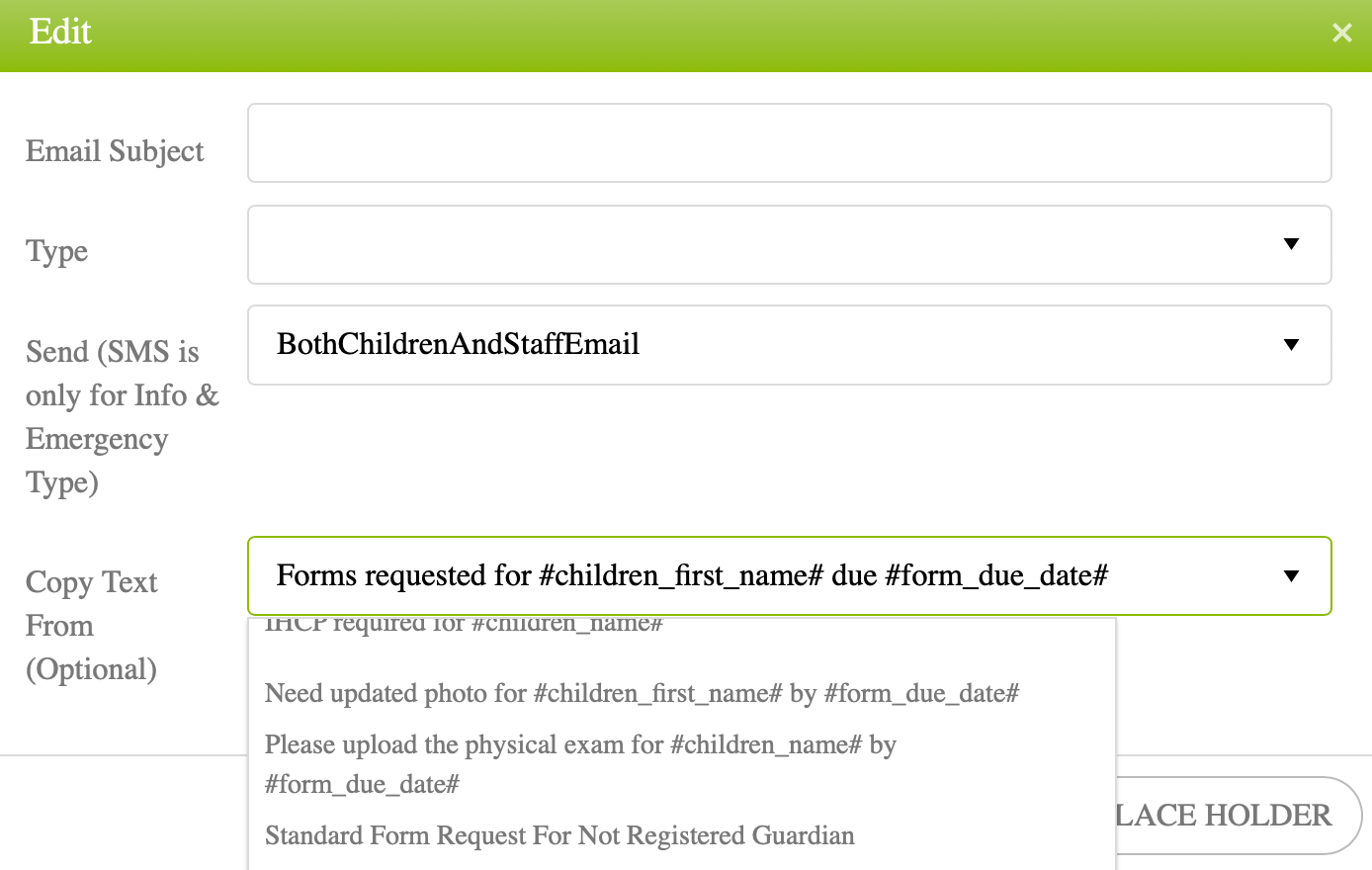
- Optional Copy Message Text From = Select from a list of standard and previously created templates to use.
ALL message templates require specifying Subject, Type, SendIF you are creating a FORM REMINDER or FORM REQUEST message this will need to be related to a specific form or packet. A form can only be related to one Reminder and one Request Message template at the time.
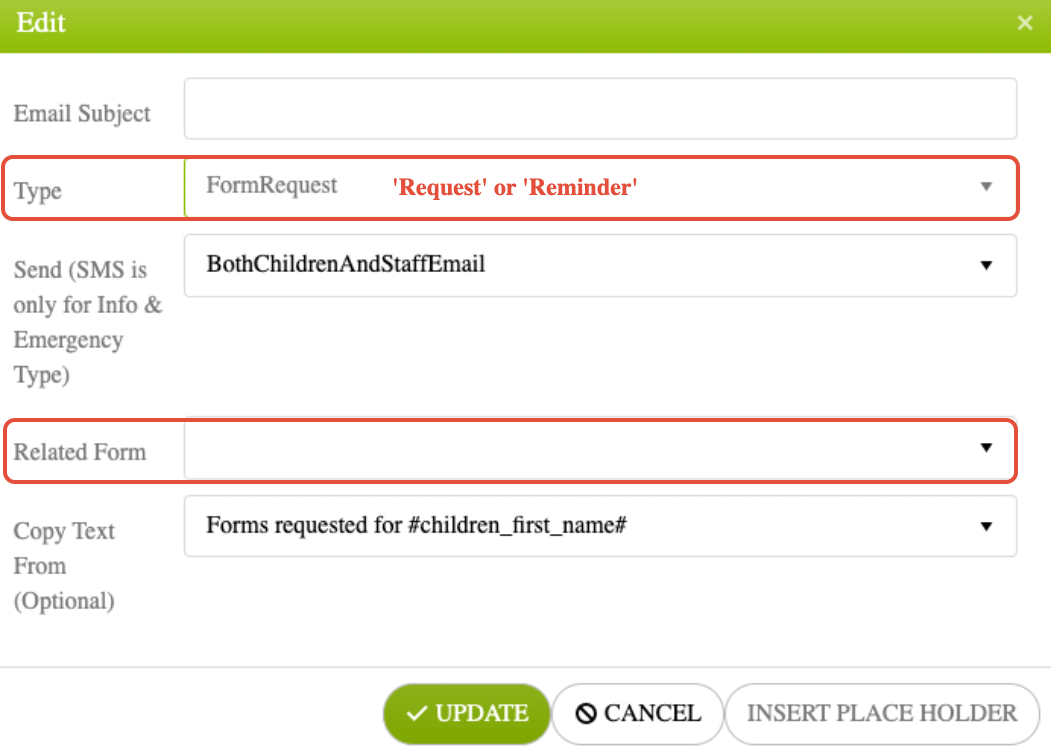
4. Select UPDATE to add to templates library.
EDITING A MESSAGE TEMPLATE:
5. To Edit the message template, select the template name. The message body will appear below.
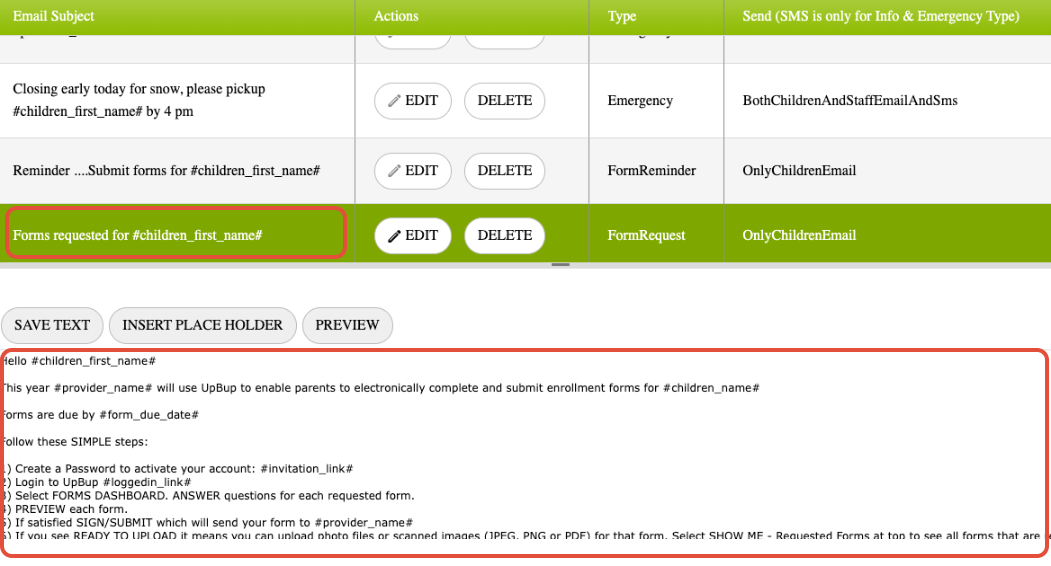
6. Click to place cursor in the template editor and begin edits. Please hit SAVE TEXT or PREVIEW to save your edits prior to sending them
To insert a Smart Place Holder in the message text, select INSERT PLACE HOLDER, and choose from the dropdown list. Select INSERT to accept. Learn more about how to use "Place Holders" in this article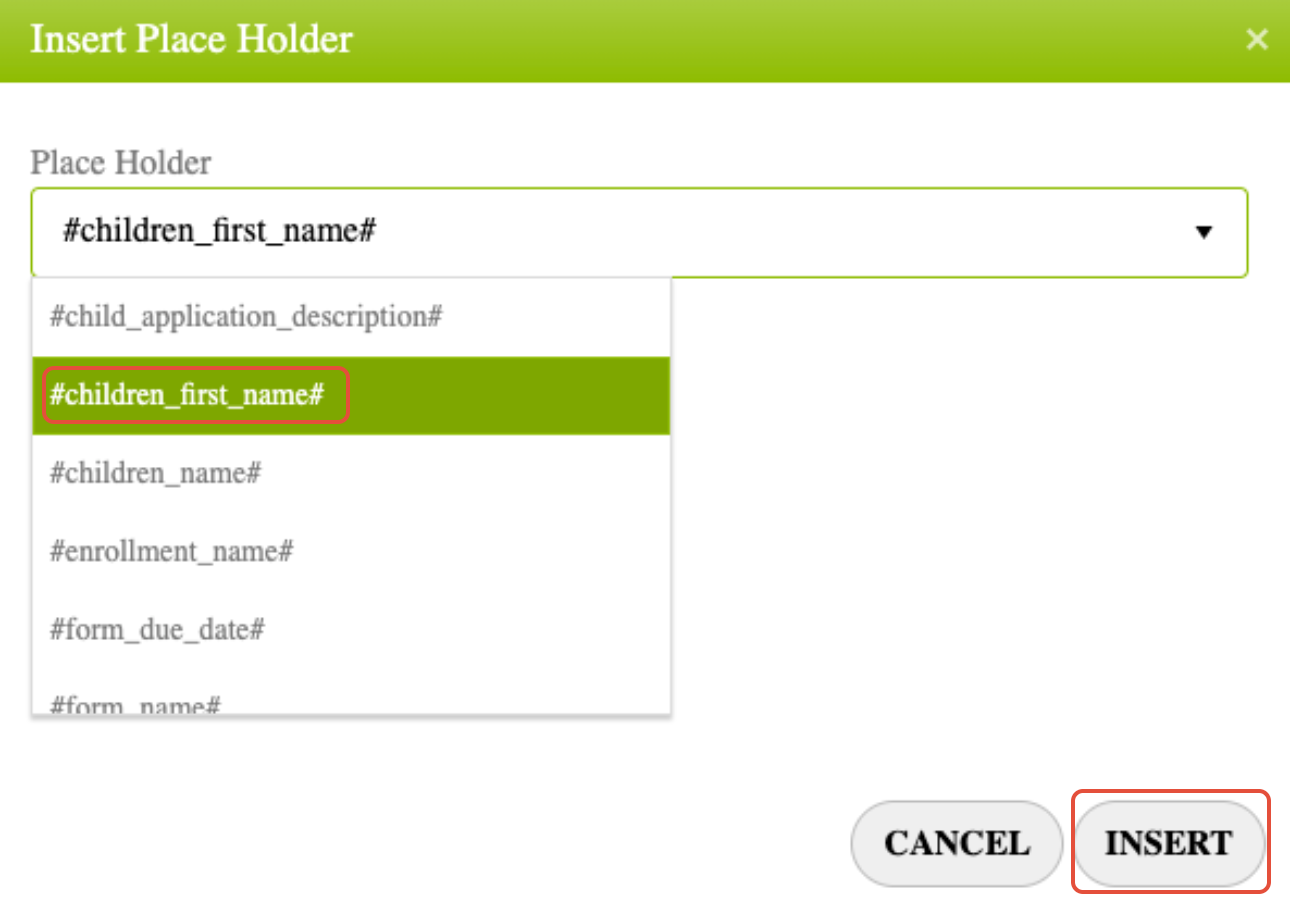
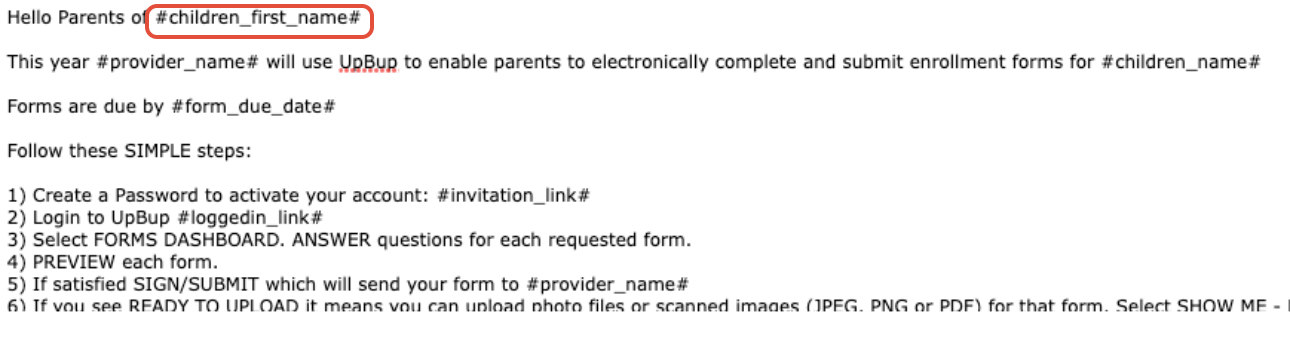
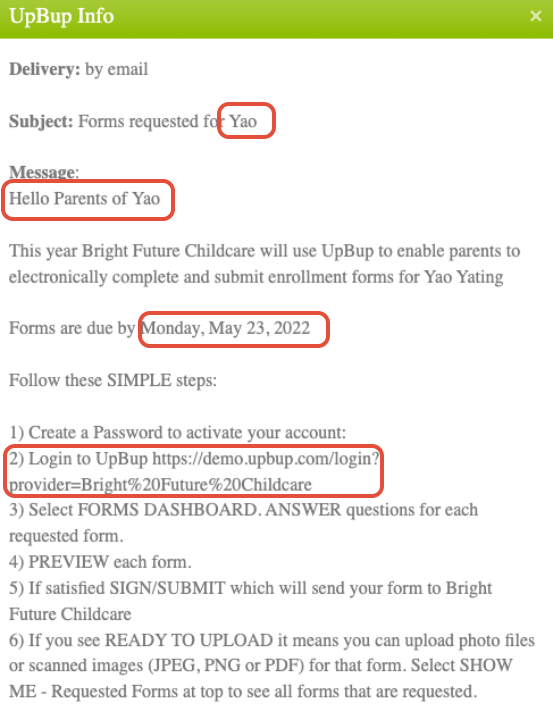
7. Use PREVIEW to see a sample message populated with the placeholder values as they will appear in the message received by Parents and/or Staff
IMPORTANT:

REMINDER and REQUEST Messages will have to include the #invitation_link# placeholder to be sent. If your template is missing this Place Holder, the standard request/reminder message template will be used.