
If a staff member has uploaded a document to a their file that now needs to be removed, you can easily do so by following the steps below.
1. Login app.UpBup.com (If you forgot your password you can always reset it by following these instructions: Login and Password Reset)
To delete a scan as admin (click here to skip to steps to delete a scan as teacher or staff):
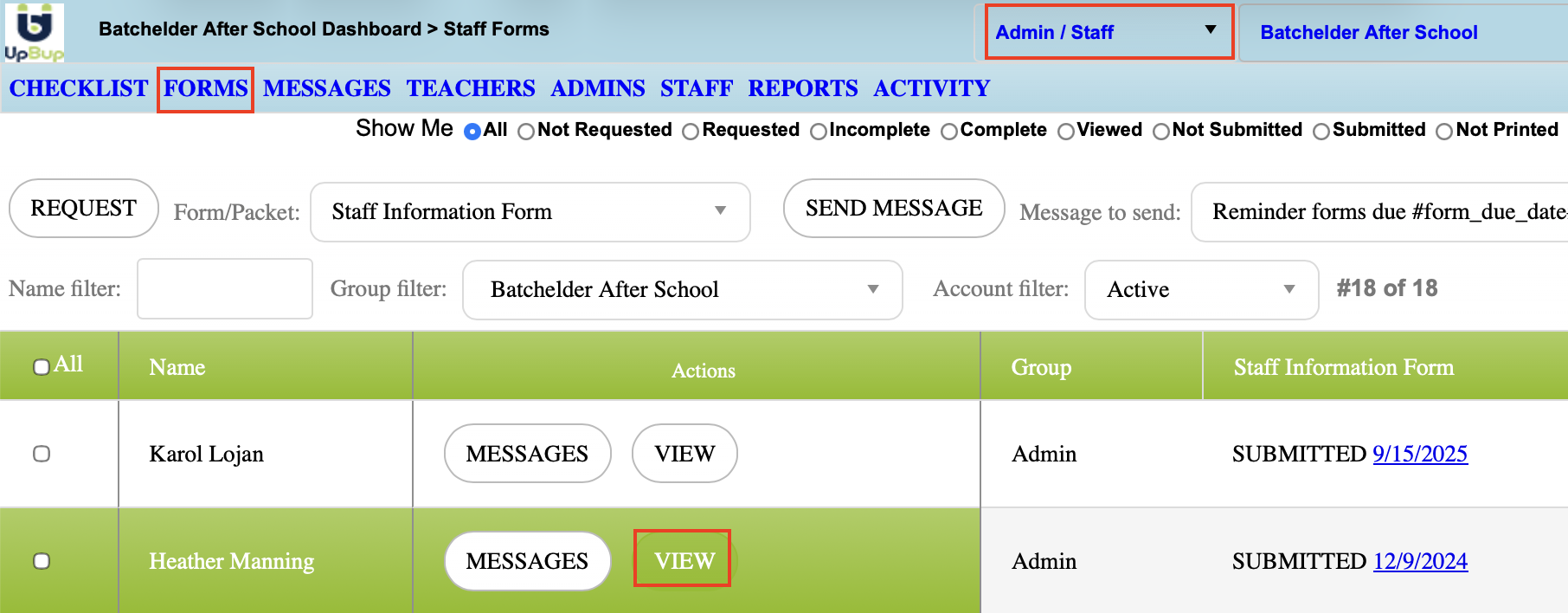
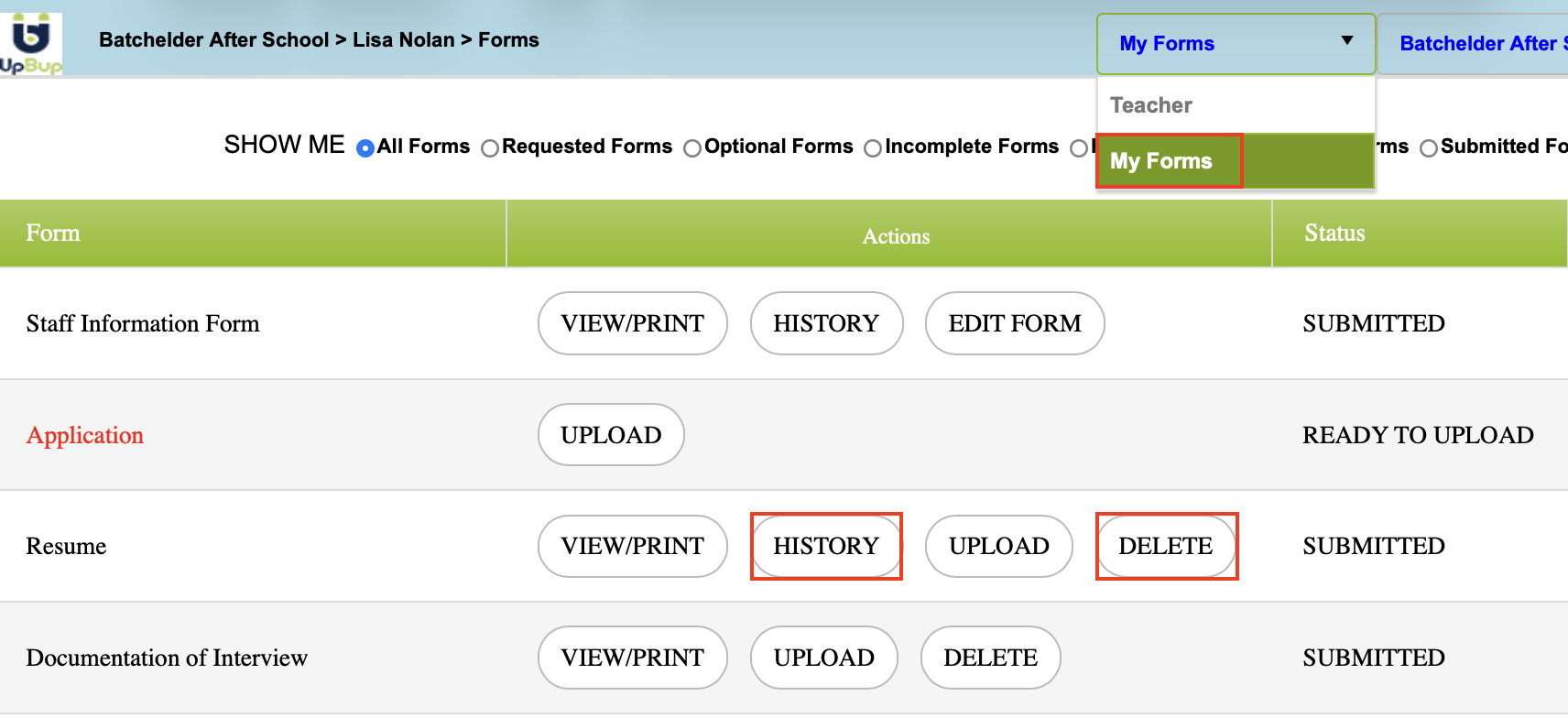
2. From the Admin/Staff View, navigate to Forms Dashboard, locate the staff's name and click the View button next to it.
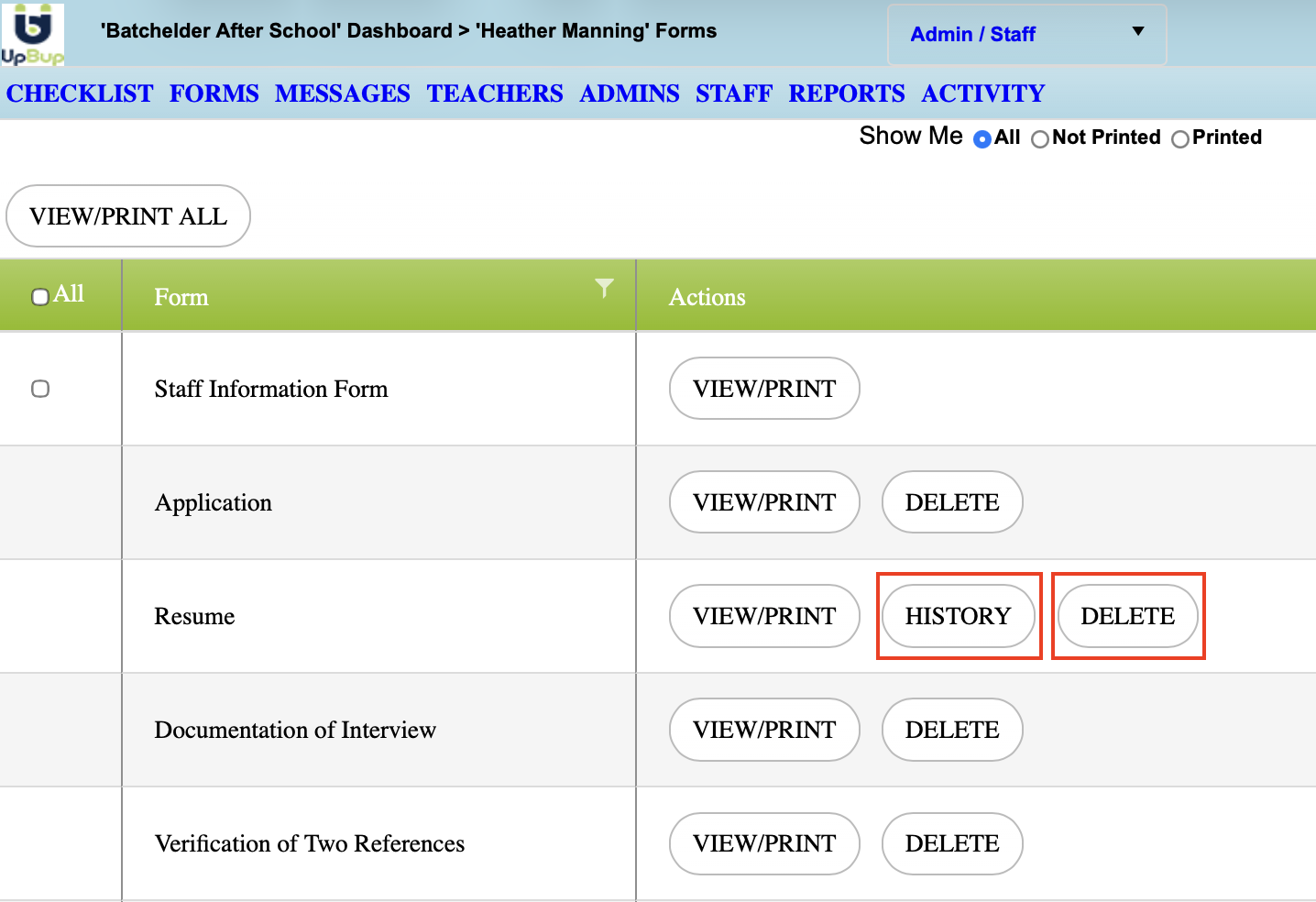
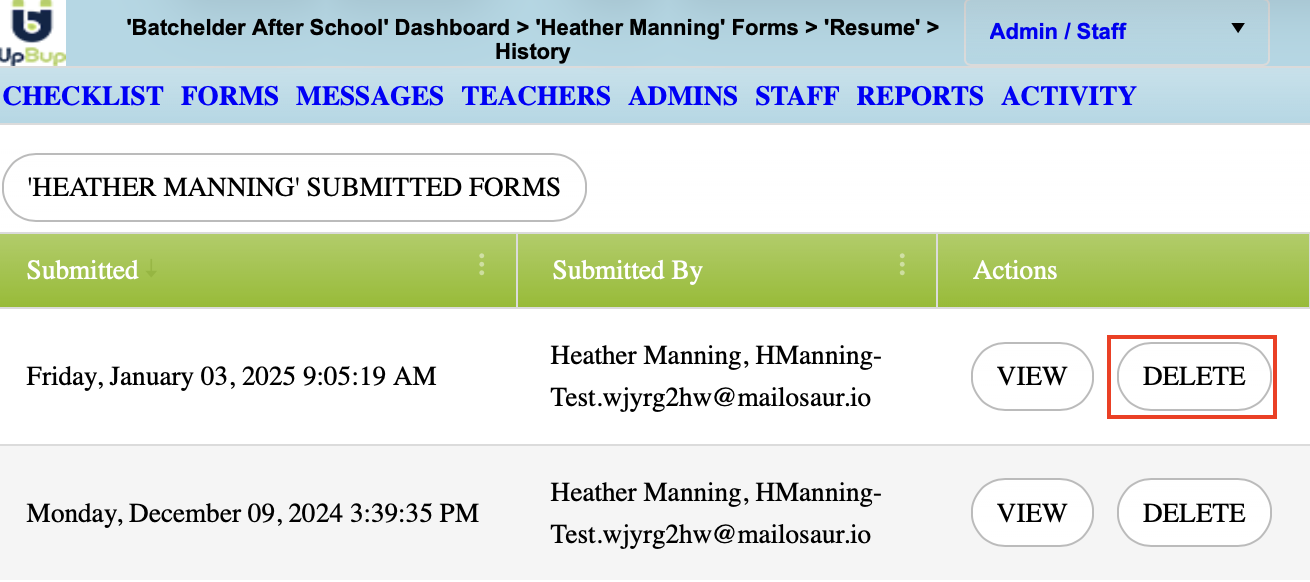
3. The most recent files uploaded can be deleted here. To delete older versions of a document, go to HISTORY and delete the version of the document that shouldn't be kept
Please note that when a document is deleted, the PDF is replaced for the following:
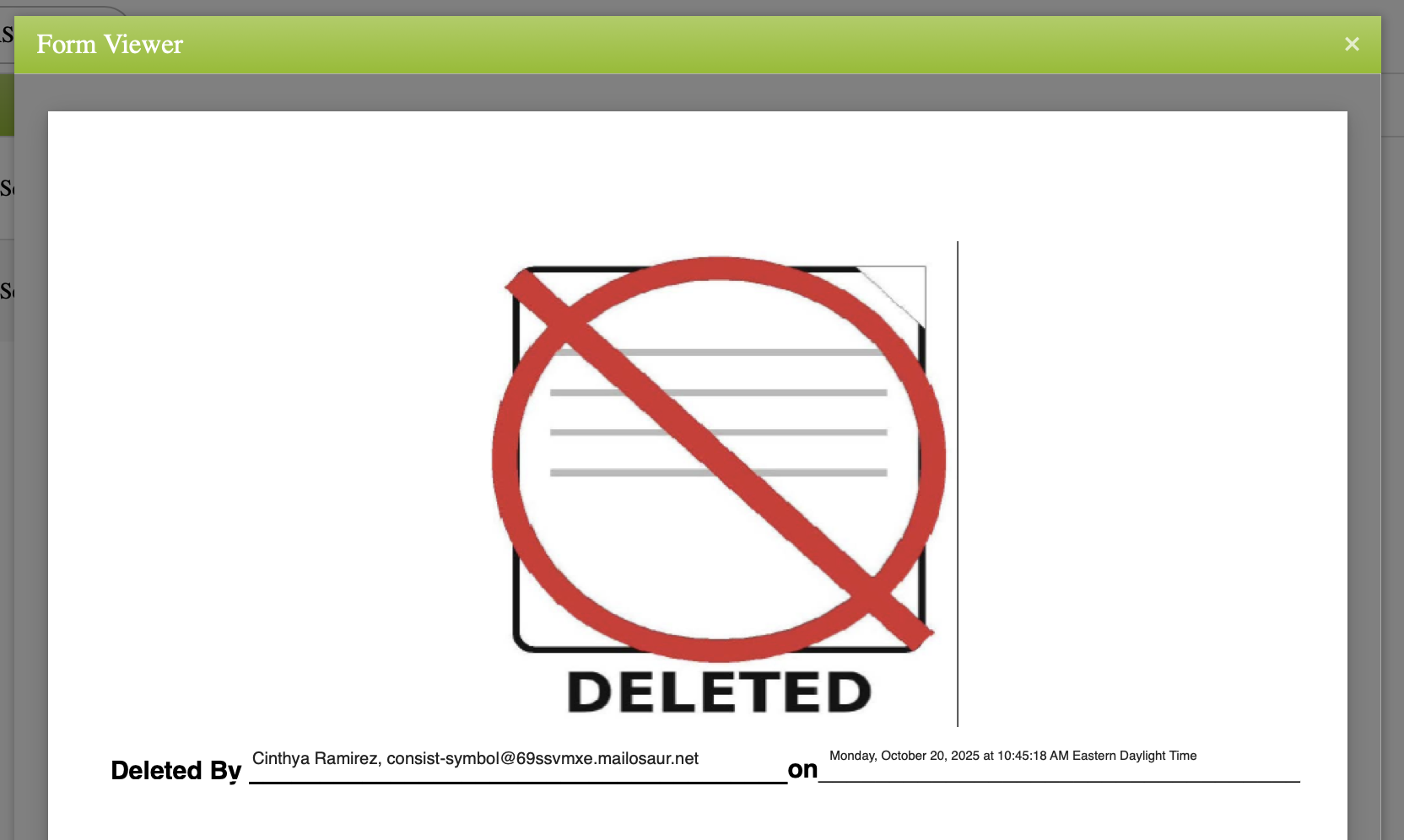
When the most recent version of a document is deleted, a new version should be uploaded, to ensure that the updated version reflects on your dashboardTo delete a scan as staff/teacher:
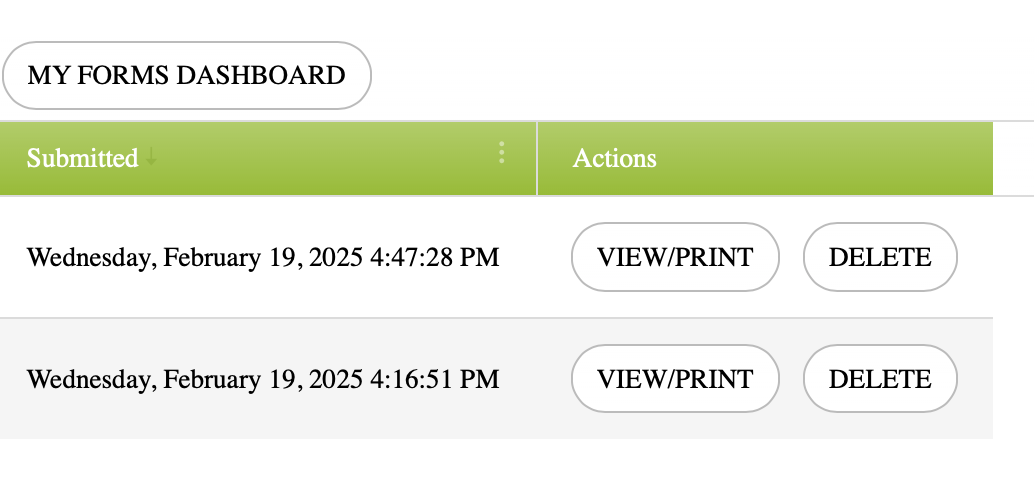
2. From the MyForms View, navigate to Forms Dashboard, locate the forms name and click the delete button next to it. This will delete the most recently submitted version. To delete older versions of a document, go to HISTORY
3. Delete the version of the document that shouldn't be kept
Please note that when a document is deleted, the PDF is replaced for the following:
RELATED ARTICLES:
Changing roles - Admin, Staff, Teacher