
UpBup’s Attendance Tracking simplifies and centralizes your center’s daily attendance record keeping. A streamlined interface, quick selection tools, and instant reports place your center’s attendance records at your fingertips.
TABLE OF CONTENTS
- LAYOUT
- SET ARRIVAL and SET DEPARTURE
- SET A CHILD AS ABSENT/ATTENDING
- REPORTS
- WATCH OUR VIDEO ON ATTENDANCE
You can access the ATTENDANCE dashboard from an admin or teacher user
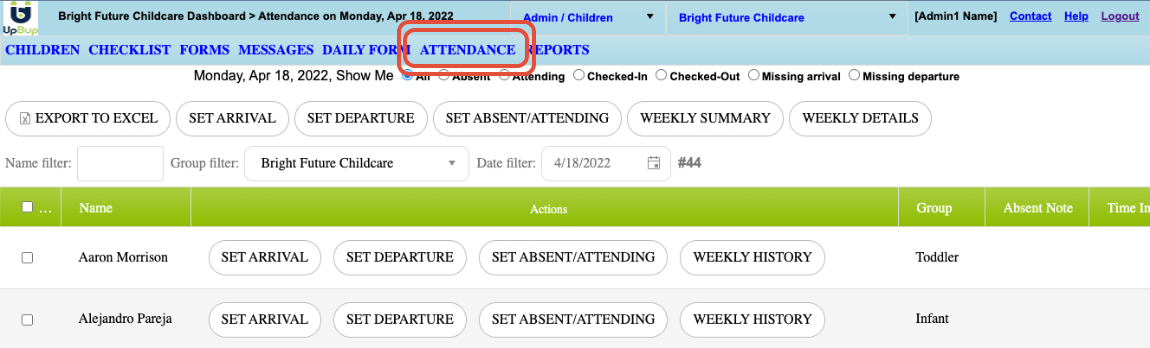
LAYOUT
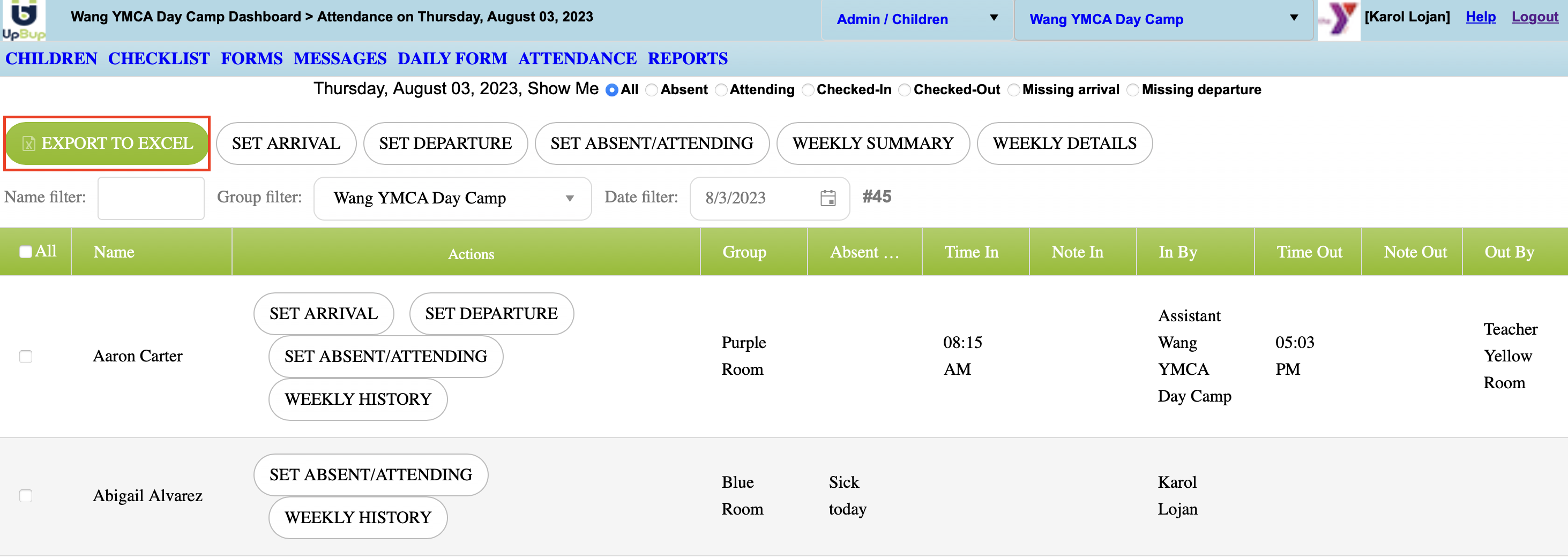
Show Me filters – Use the filters at the top of the dashboard to quickly view student records according to attendance status and quickly identify records missing status requiring attention.
- All: shows all of the children in your roster/group (if a specific group is selected in your group filter dropdown)
- Absent: Shows all children marked as absent
- Attending: Shows all children that have been checked in or out, or not marked as absent
- Checked in: Shows all children that have had their arrival time set
- Checked out: Shows all children that have had their departure time set
- Missing arrival: Shows all children that are attending and have not had their arrival time set
- Missing departure: Shows all children that have an arrival time, but no departure time

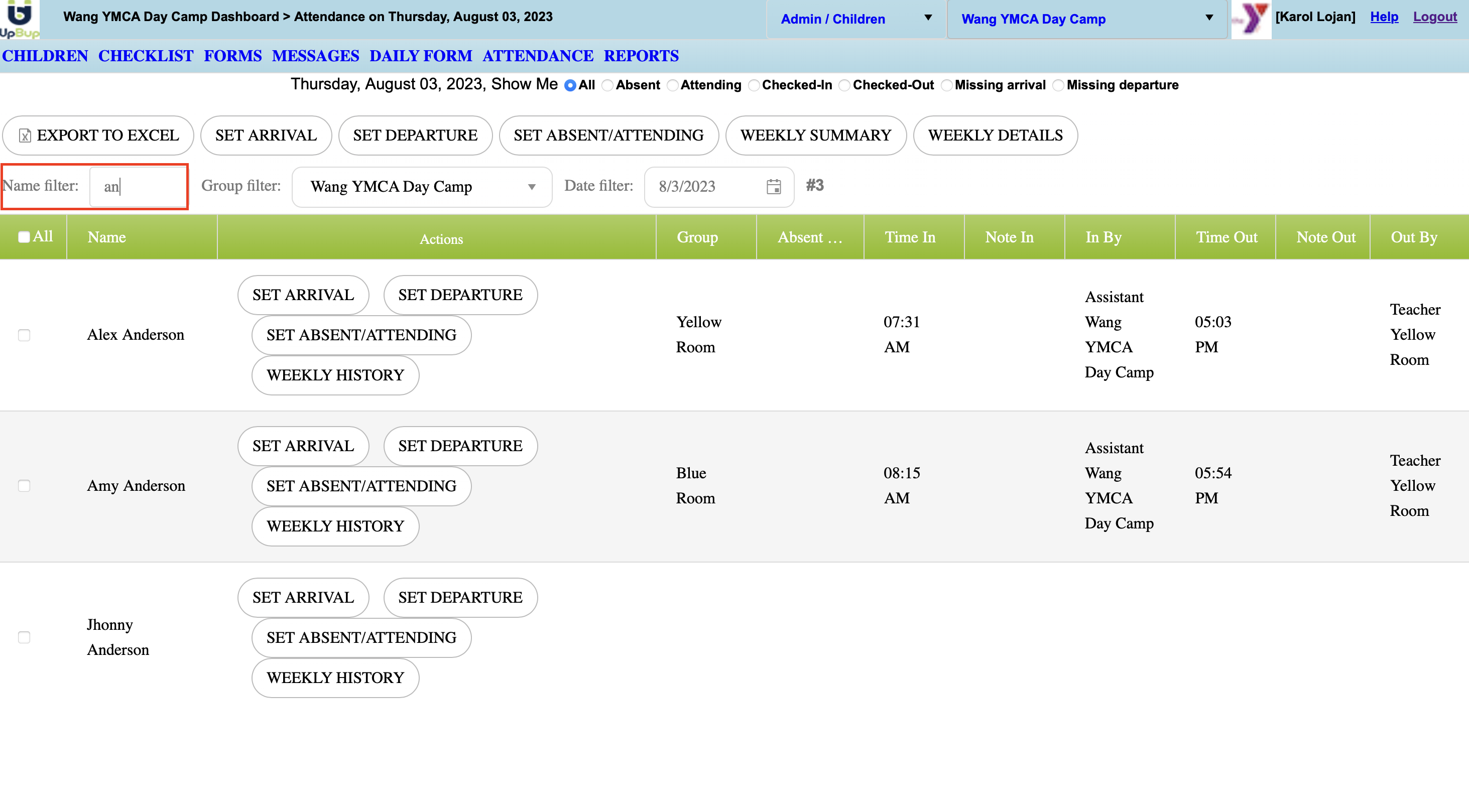
Name filter - Quickly locate student records. Type a child's name to have it displayed top of your list
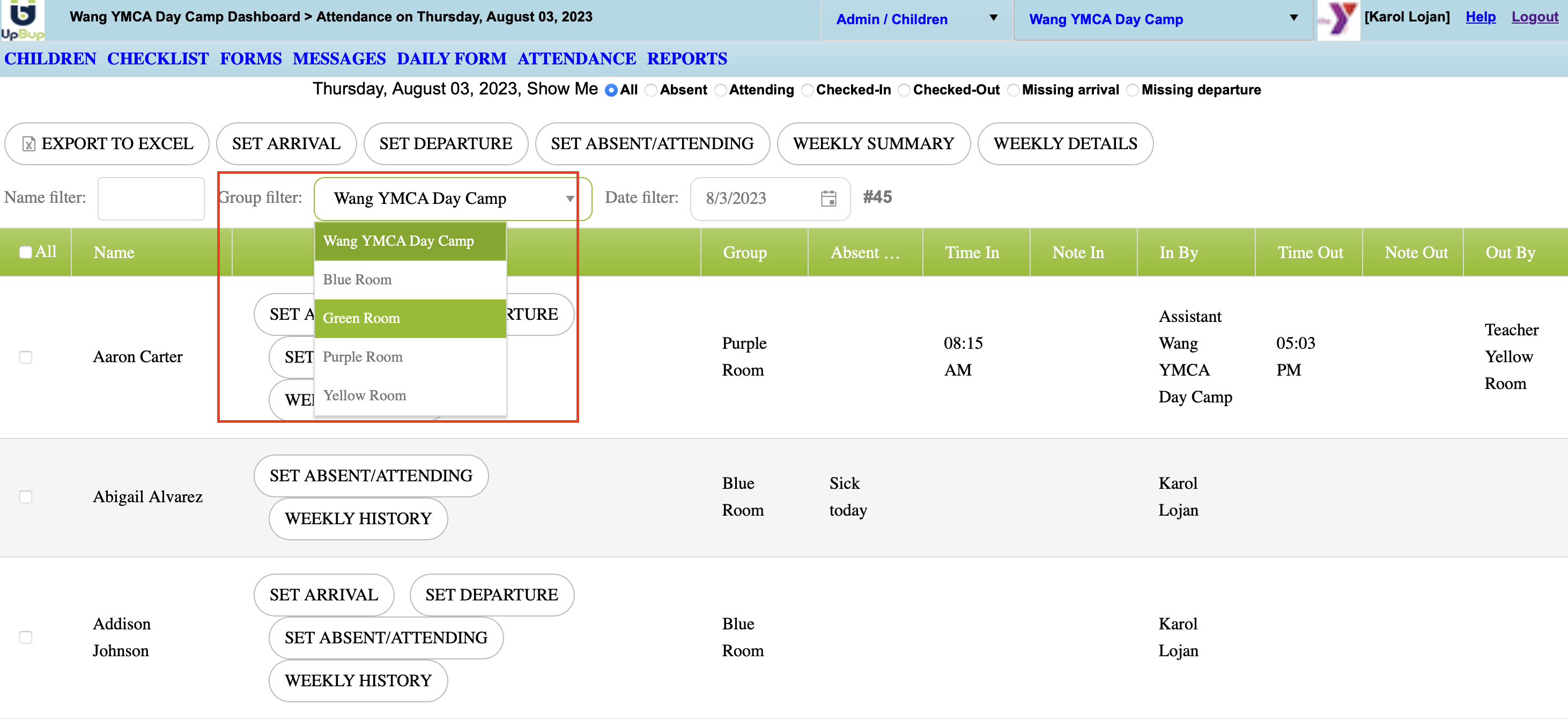
Group filter – Show all students or select class or room from dropdown
SET ARRIVAL and SET DEPARTURE
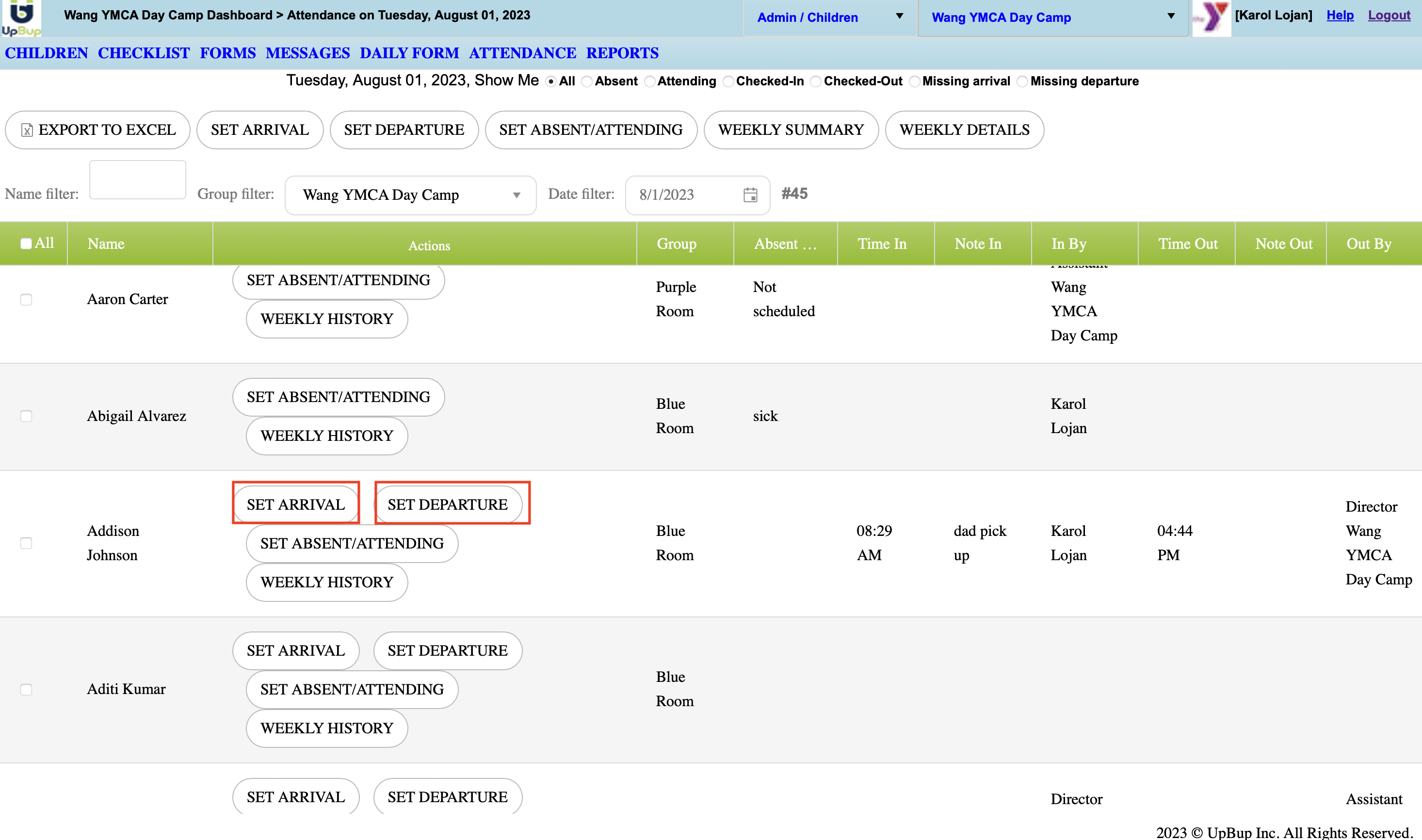
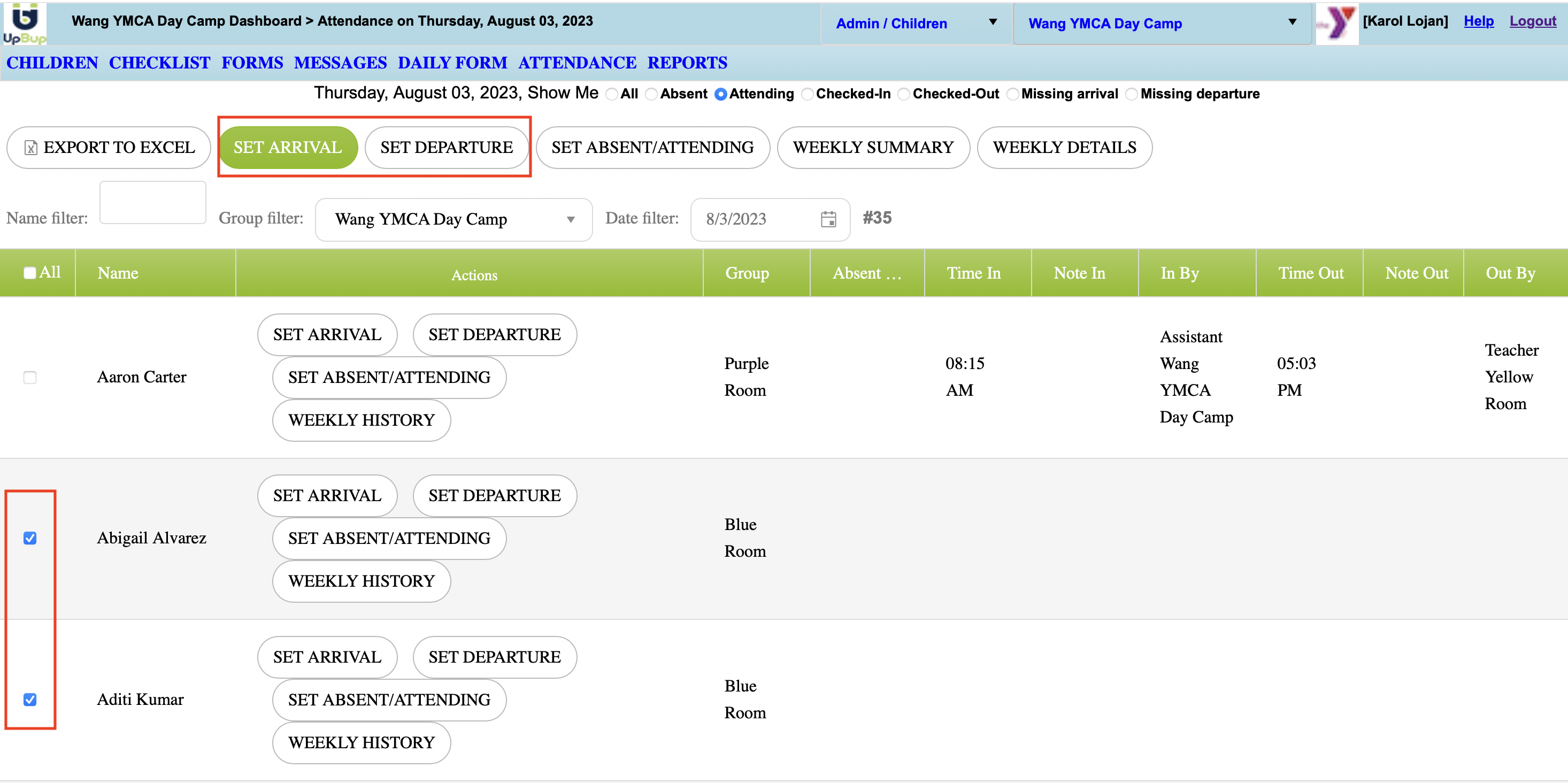
You can set multiple children's arrival and departure in one action by selecting them with the checkboxes at the left of their names, and selecting either the SET ARRIVAL or SET DEPARTURE buttons at the top of the dashboard
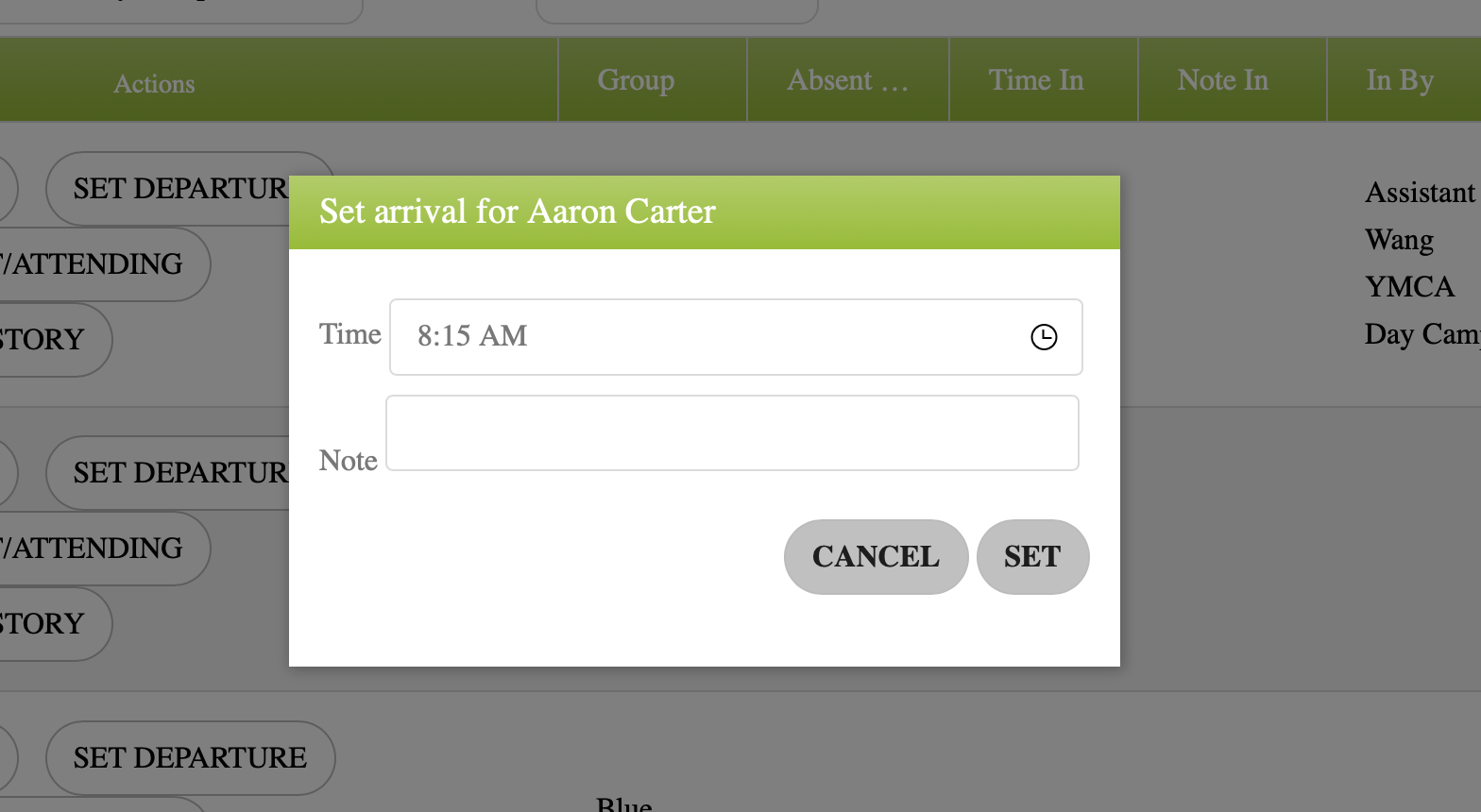
You can specify the time of arrival/departure and add an optional note for the rest of the staff to view if needed
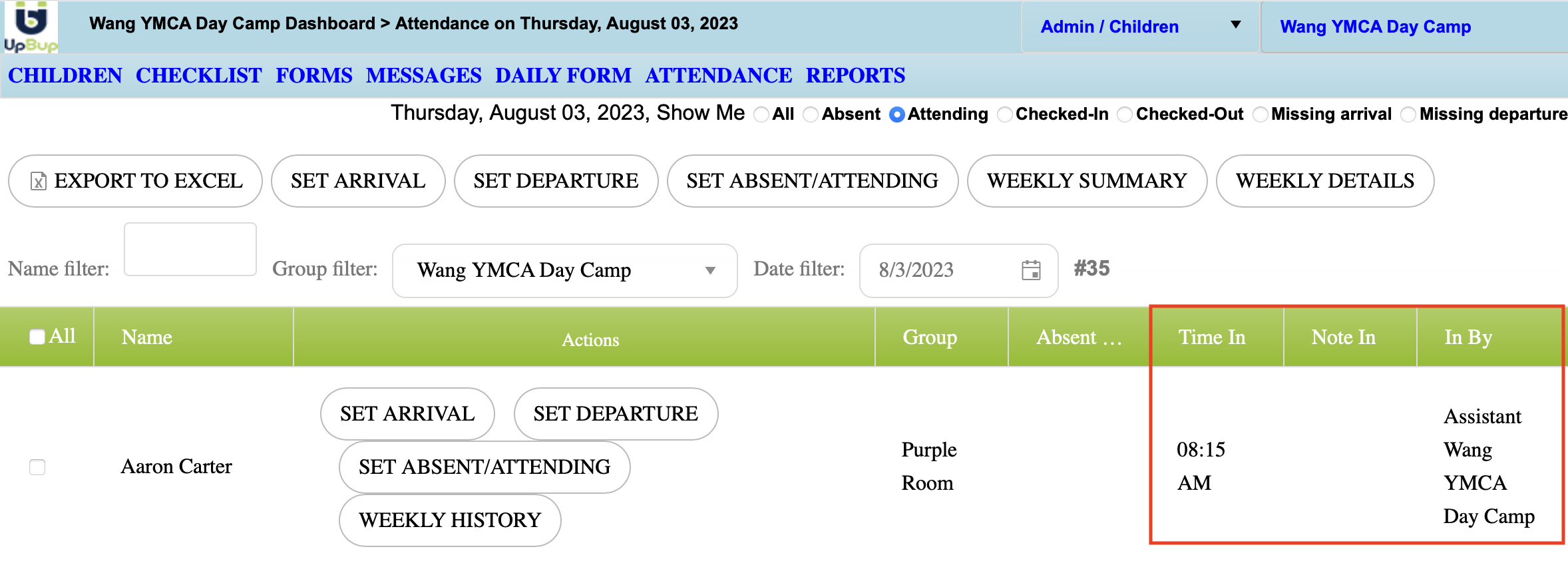
The dashboard will show the times, notes and who created those records
SET A CHILD AS ABSENT/ATTENDING
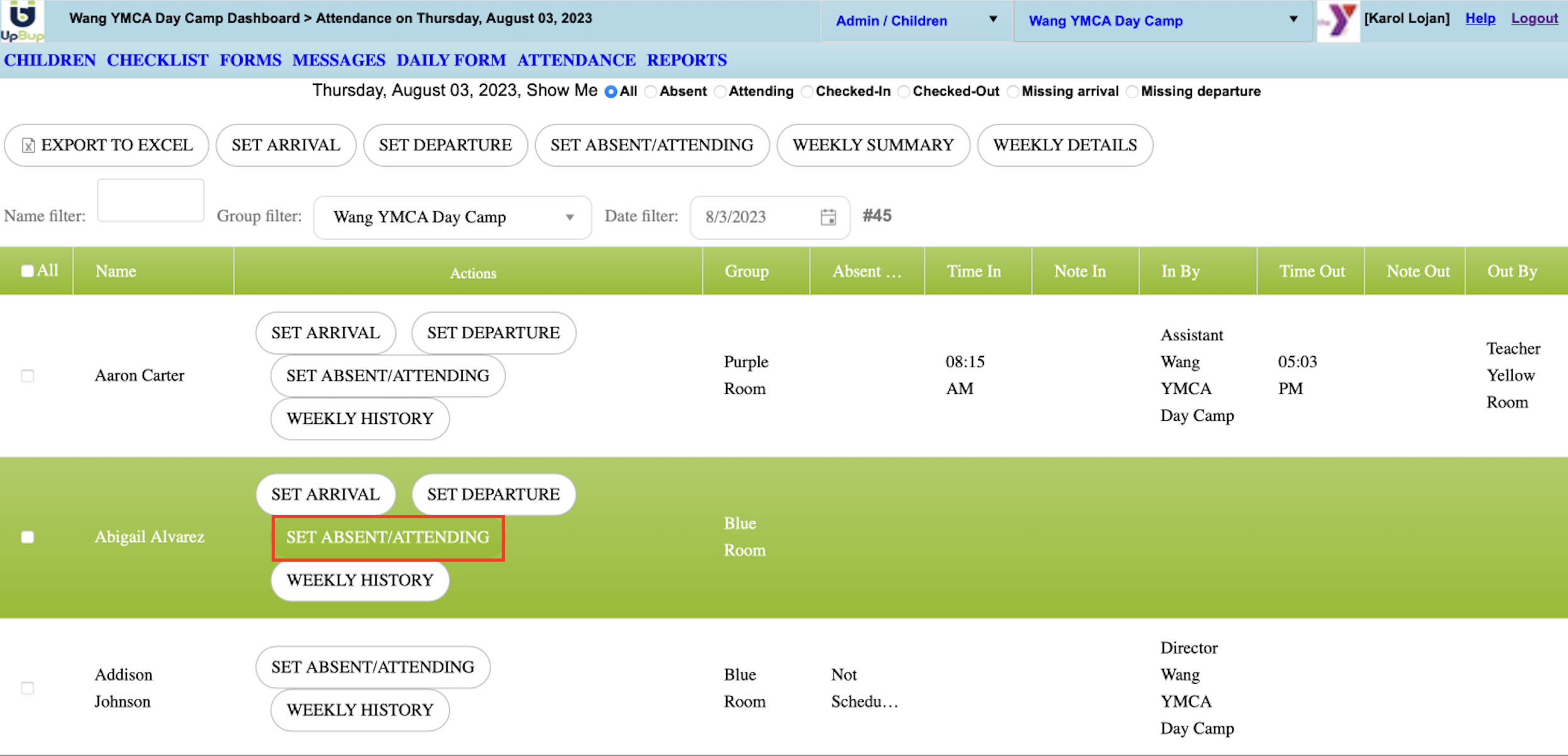
You can mark multiple students as absent/attending using the checkboxes at the left of their name and selecting the SET ABSENT/ATTENDING button at the top of the dashboard
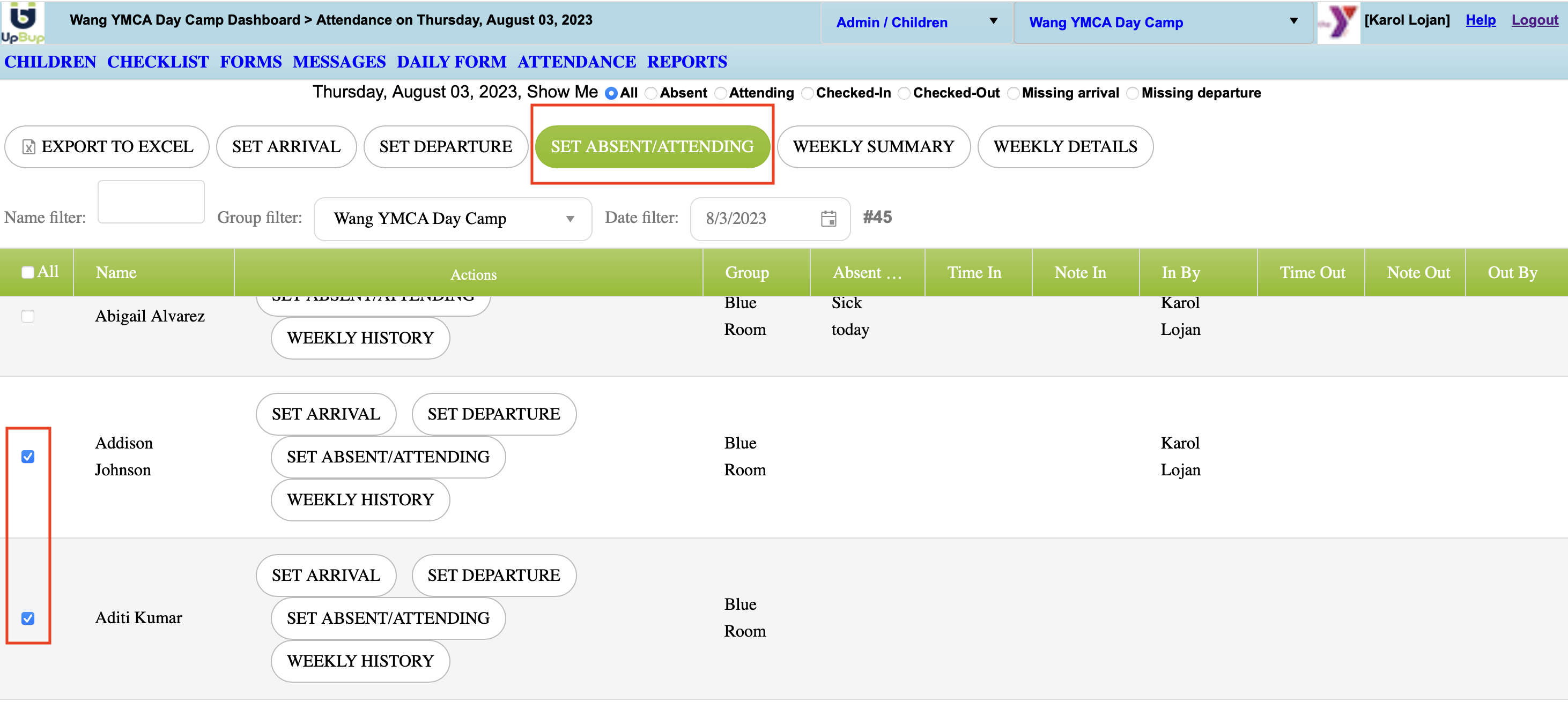
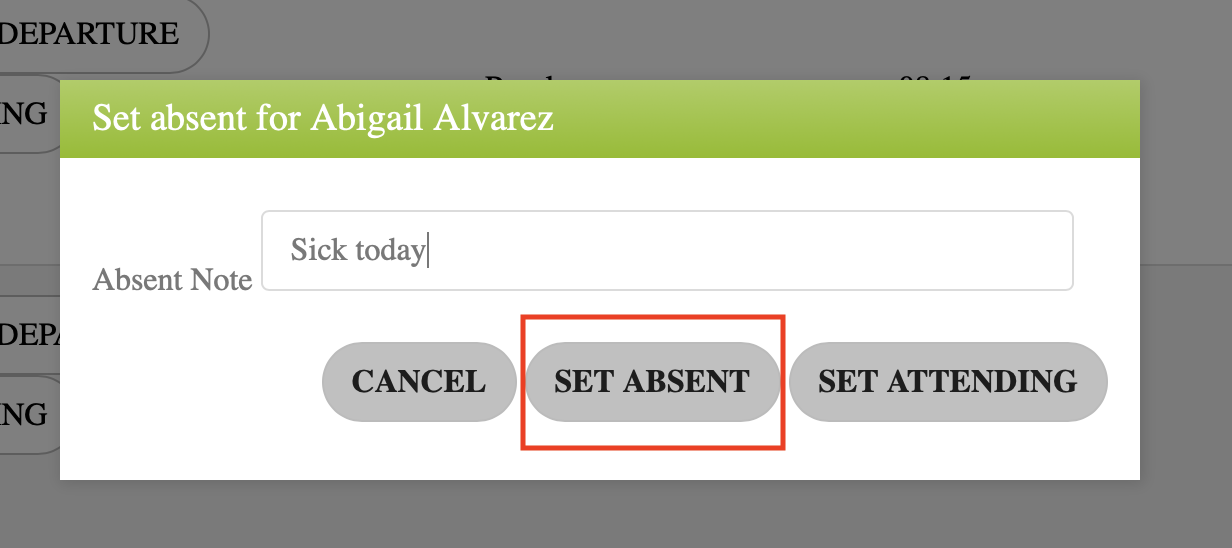
If you want to set a child as absent, you will need to add a note for other teachers/admins to know the reason for absence
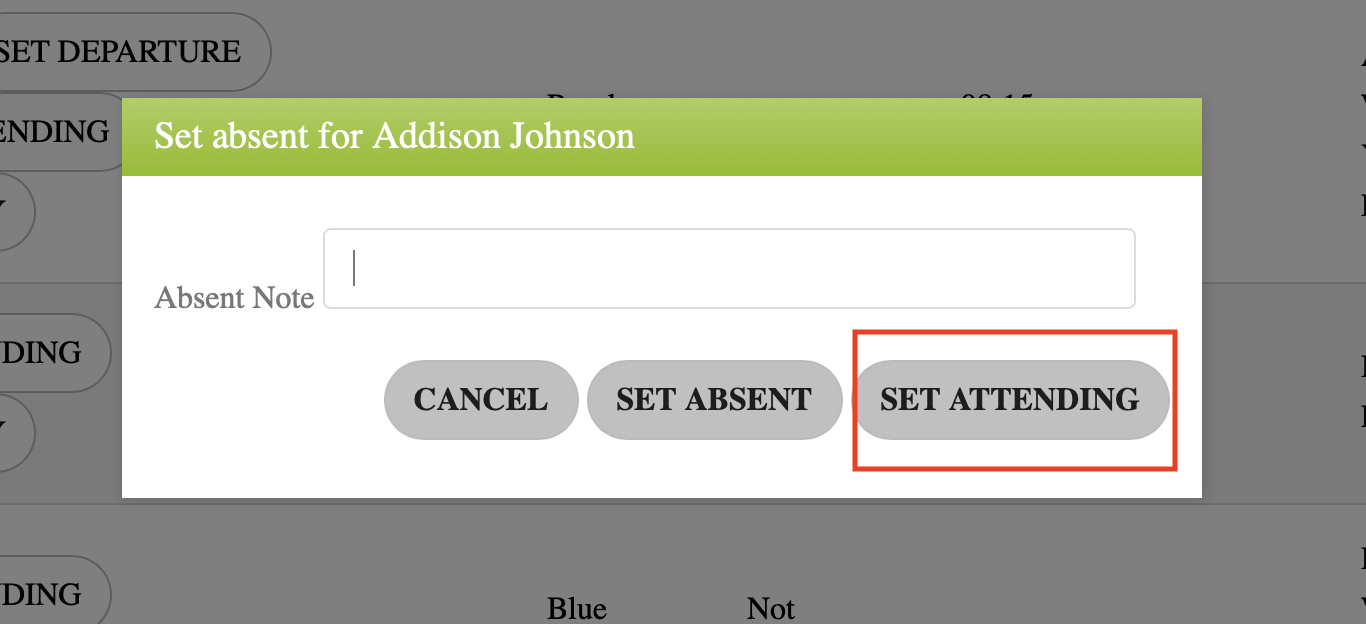
If there is a change in schedule and the child (or children) that was previously set as absent is now attending, you can follow the steps above to change that status. You will need to delete the absent note (since this child is now attending) and select SET ATTENDING
REPORTS
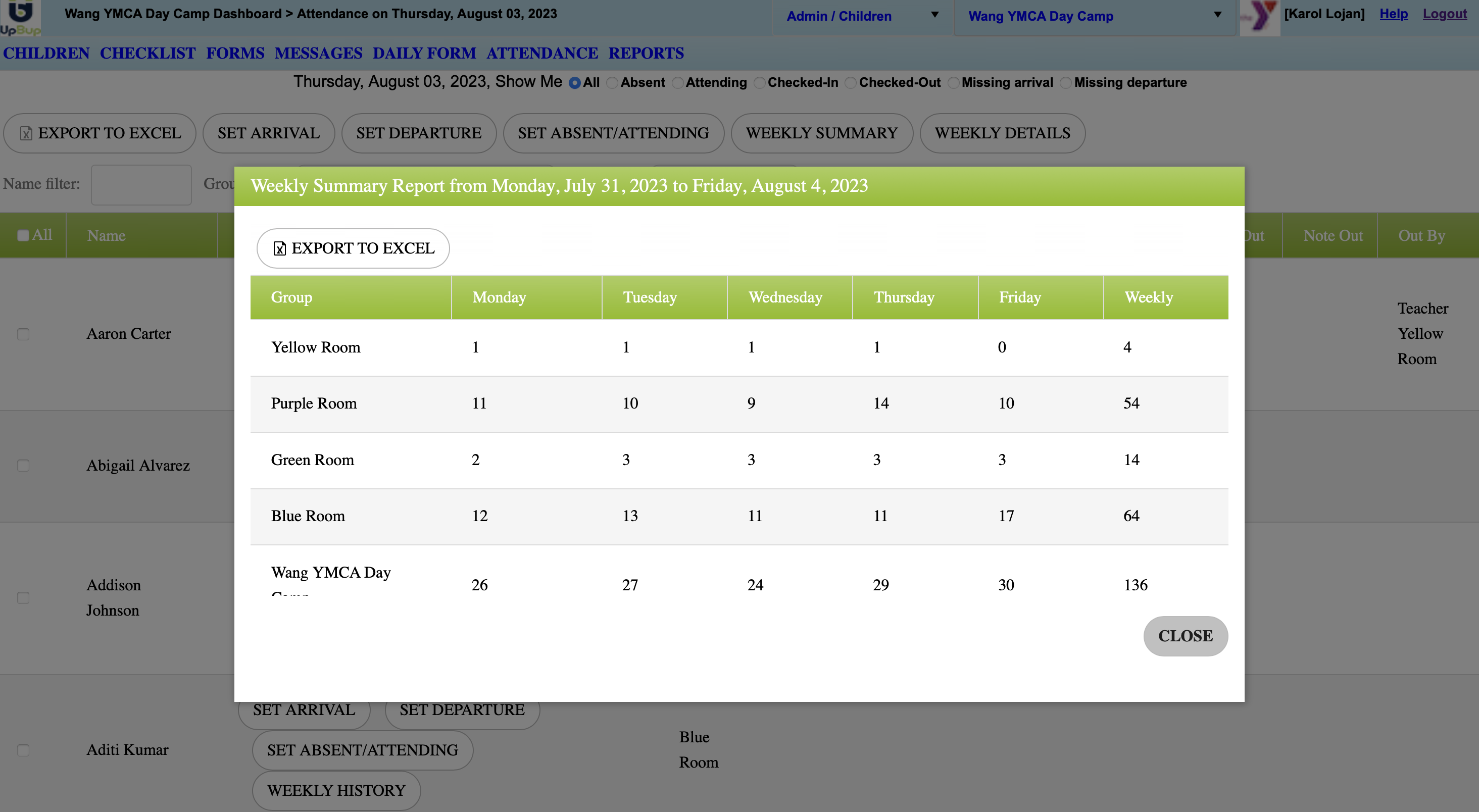
WEEKLY SUMMARY shows the weekly number of head count for the entire center/group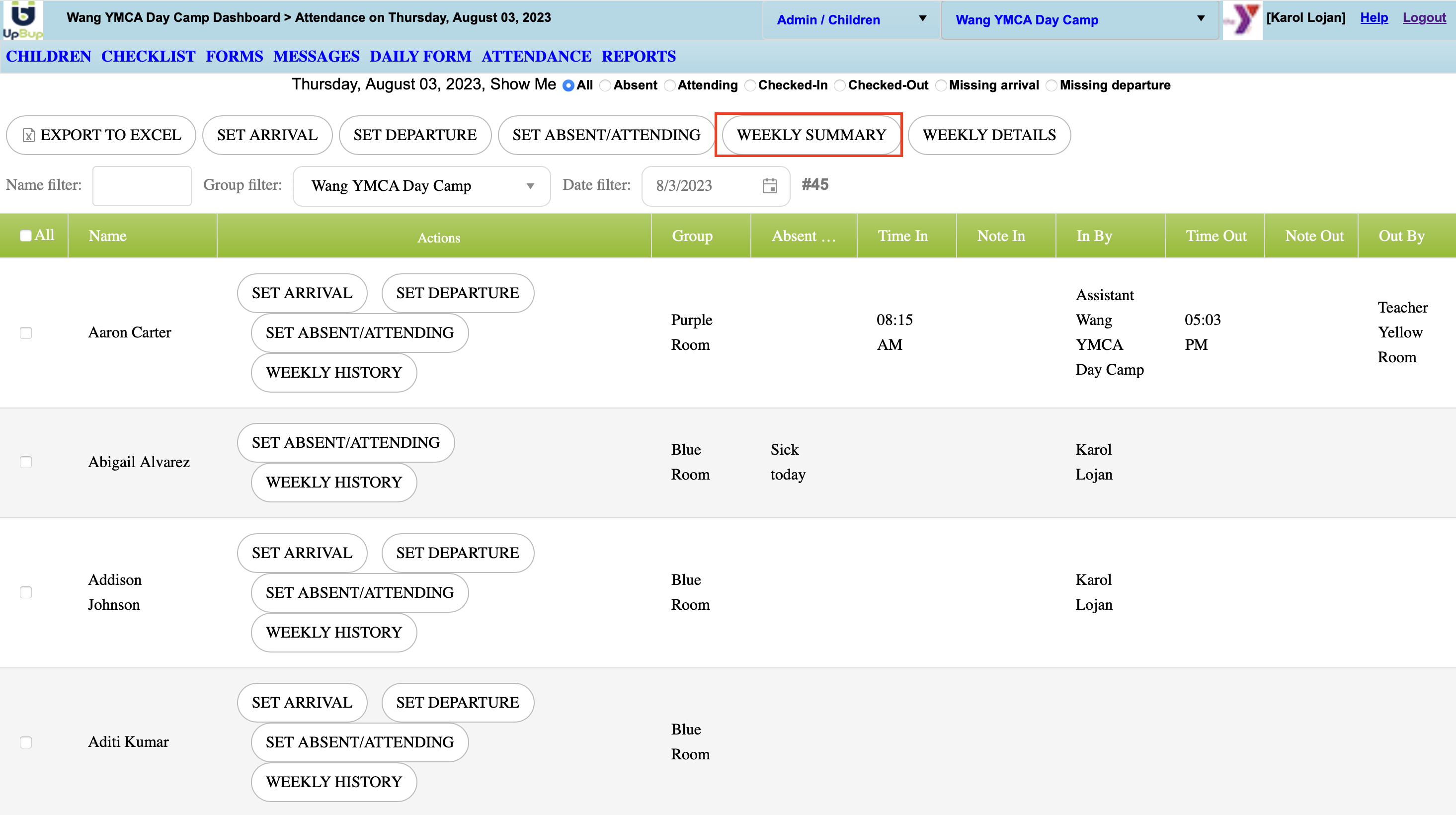
This report can be exported to excel as well
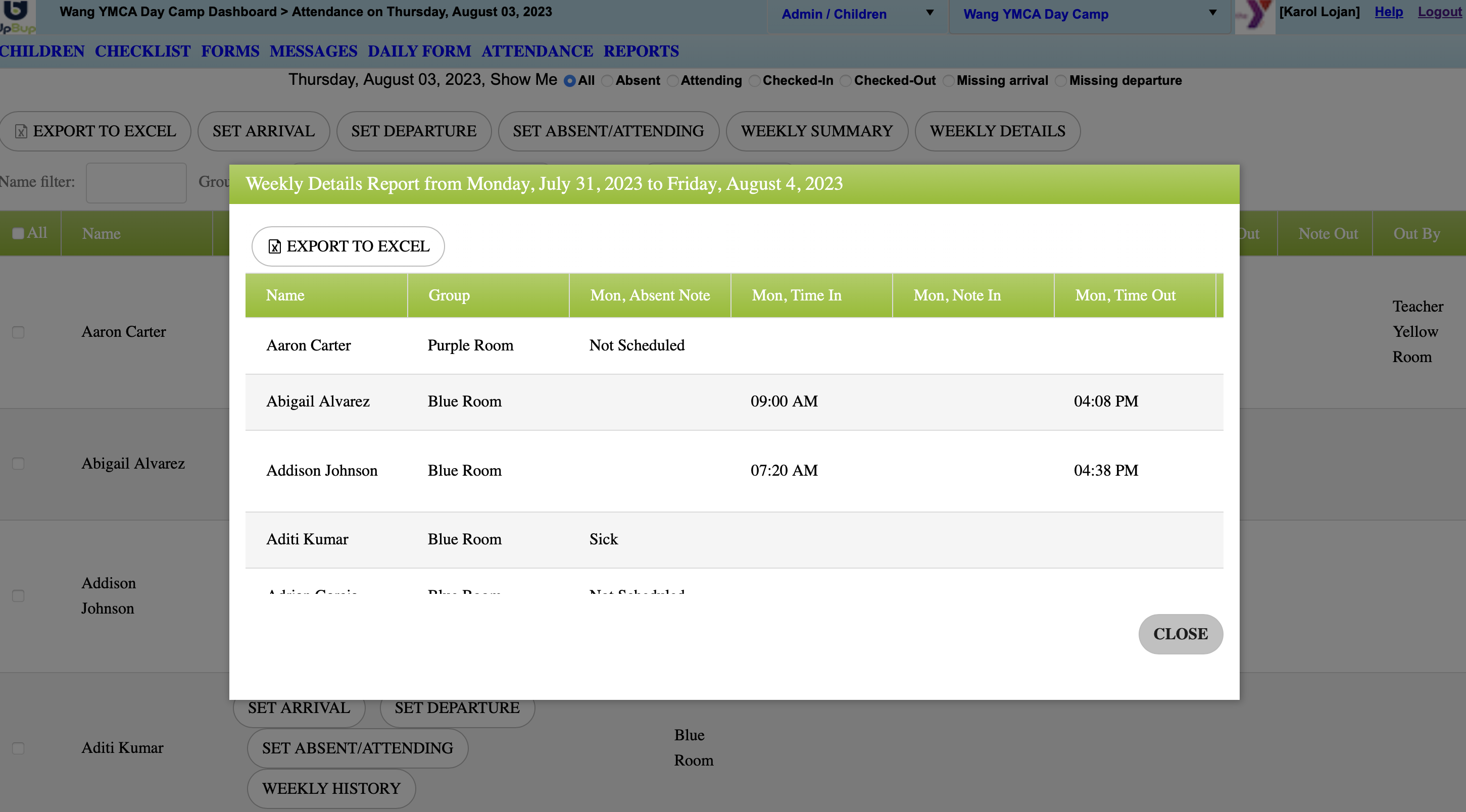
WEEKLY DETAILS shows the attendance details for the entire center/group
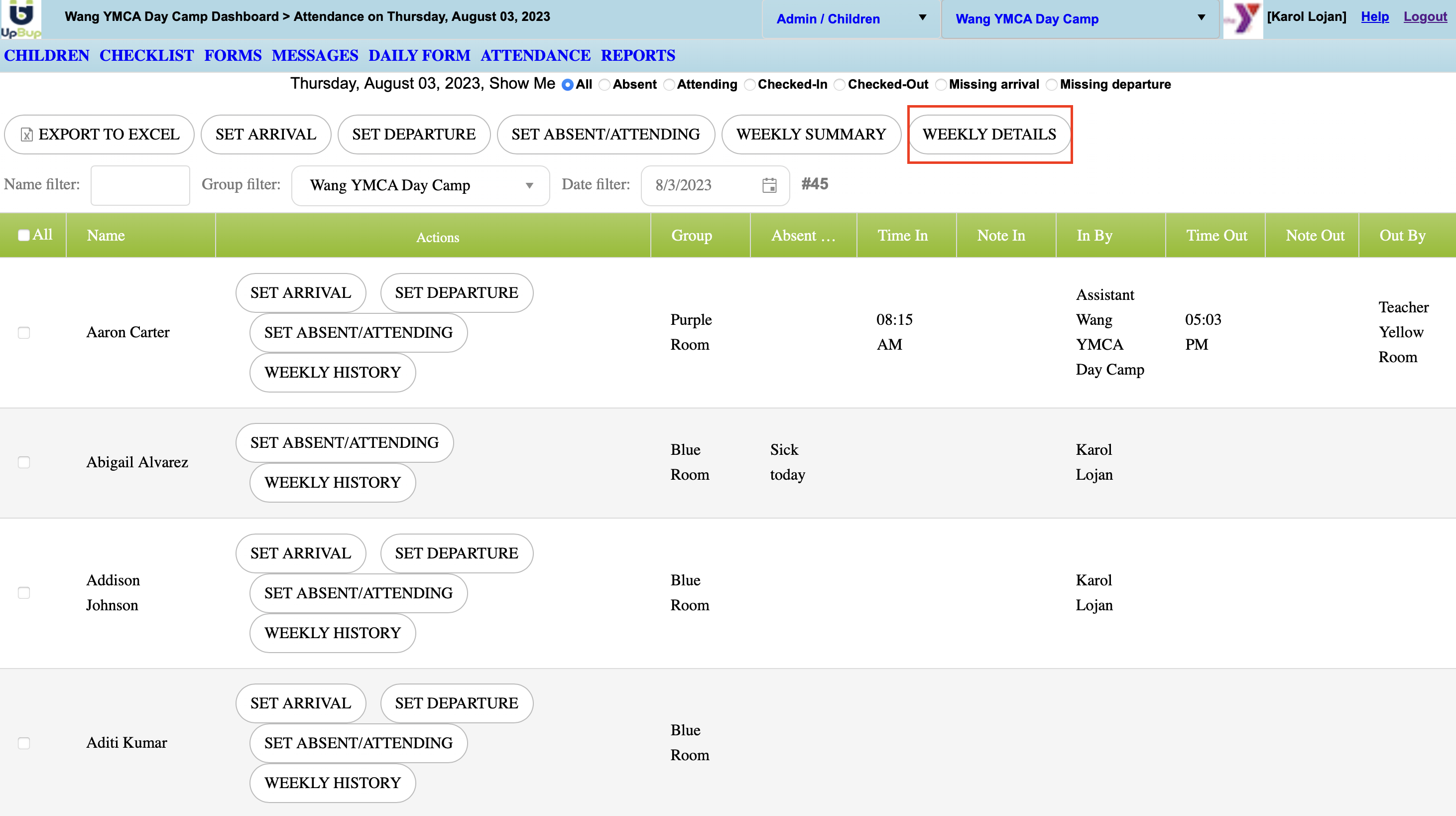
This report can be exported to excel as well
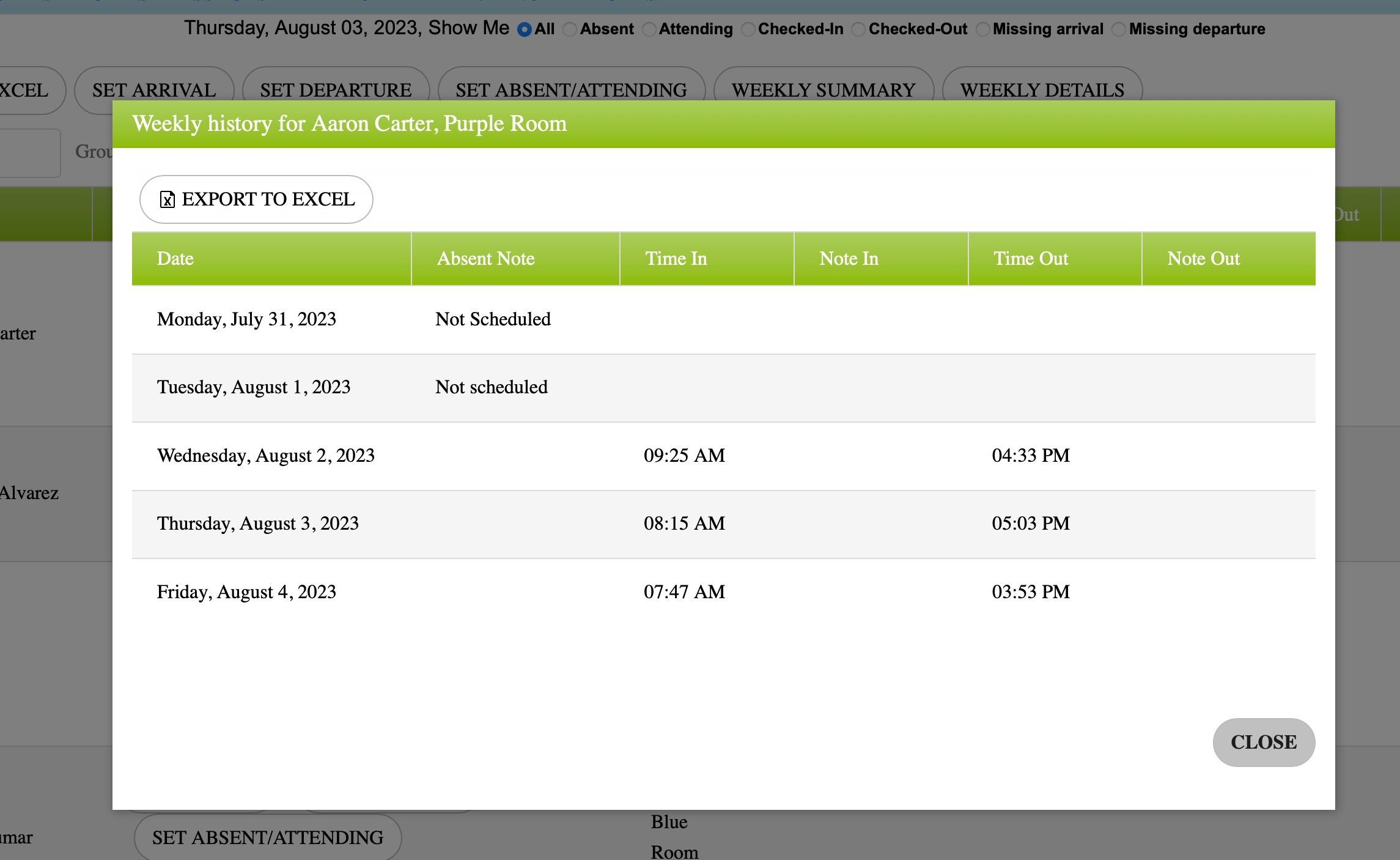
WEEKLY HISTORY provides quick attendance record for individual students
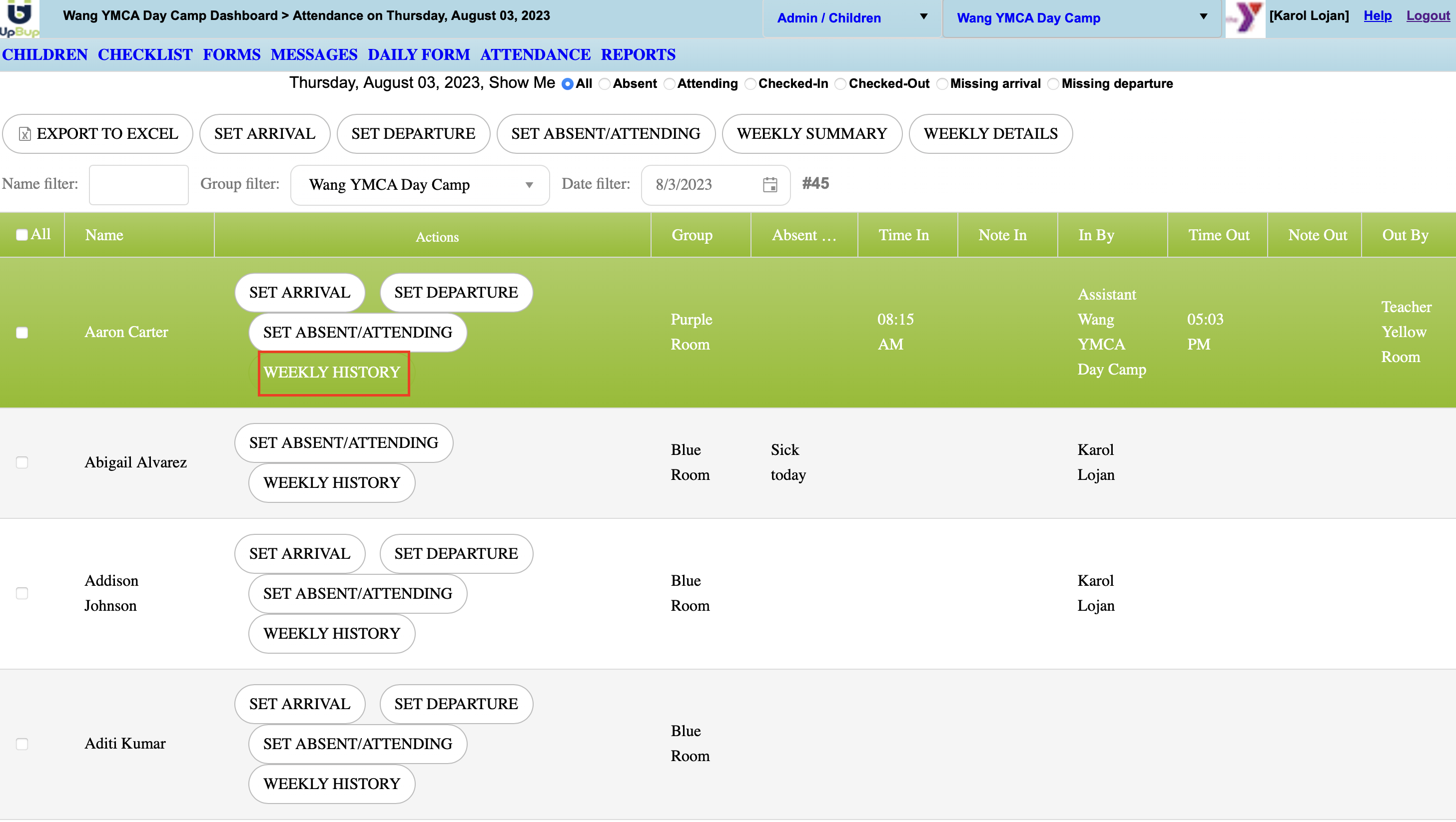
This report can be exported to excel as well
EXPORT TO EXCEL generates spreadsheet format with the daily details of attendance shown in your dashboard for your center/group
WATCH OUR VIDEO ON ATTENDANCE
RELATED ARTICLES
Add New Teachers to a Provider Site
Add & Invite New Admin to a Provider Site